Bravo University · Course 102
Why does Bravo have 2 different interfaces?
A deeper look at Tap and Scan

The starting point
One interface can’t serve every user
Other AAC apps
1
interface, usually designed for direct-select users
Bravo
2
interfaces, each built for how its user communicates

Bravo University · 102 Two Interfaces
2
Two design goals
Flexibility and efficiency
Tap · ultimate flexibility
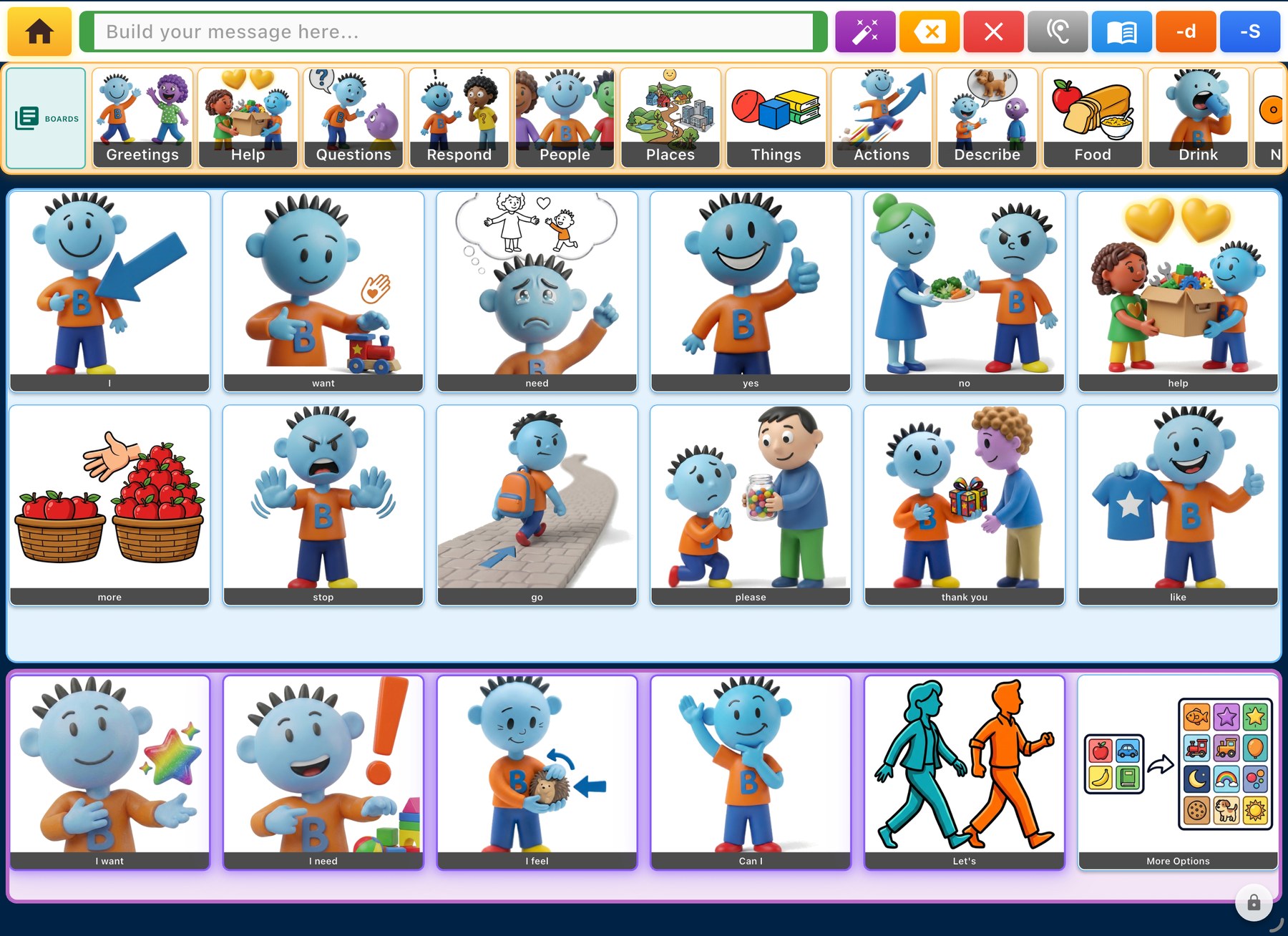
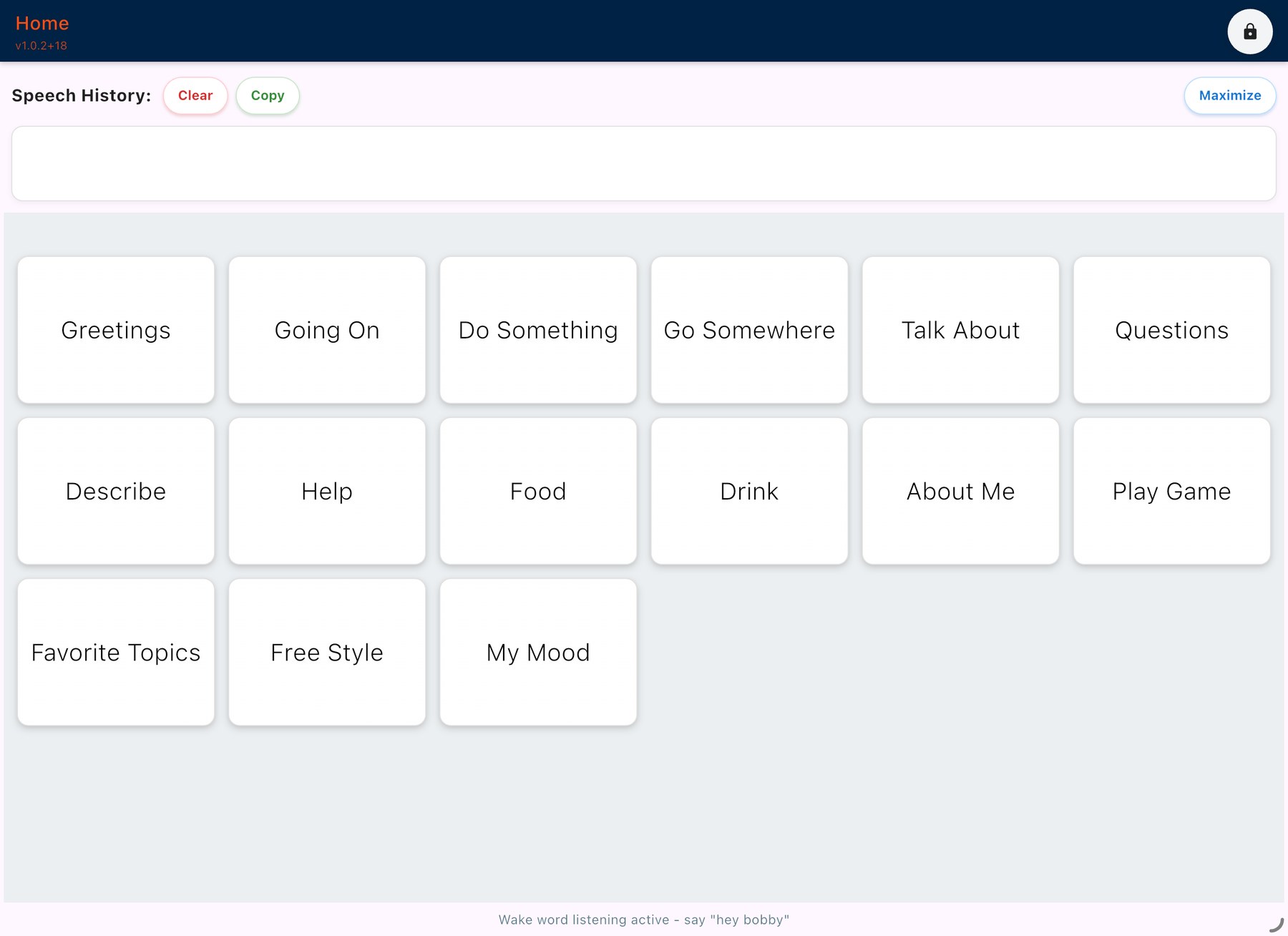
Scan · ultimate efficiency
Bravo University · 102 Two Interfaces
3
Tap vs. Scan · Selecting
How an option gets chosen
Tap
The user taps an option on the screen.
Scan
The user usually presses a switch. Tapping the screen works too.
Bravo University · 102 Two Interfaces
4
Tap vs. Scan · Selecting
The auditory scanning loop
1 · Highlight
Option is read to the user, usually on a personal speaker
2 · Decide
Does the user press the switch?
3 · Announce
Spoken aloud on the system speaker
Next option
Bravo moves on and highlights it
Yes
No
Bravo University · 102 Two Interfaces
5
Tap vs. Scan · Building a message
Building blocks or whole phrases
Tap: building blocks
I
want
go
park
Choose individual words or small phrases
Scan: phrases
I want to go to the park
Select a more developed phrase in one choice
Bravo University · 102 Two Interfaces
6
Tap vs. Scan · The grid
Flexible grid, basic grid
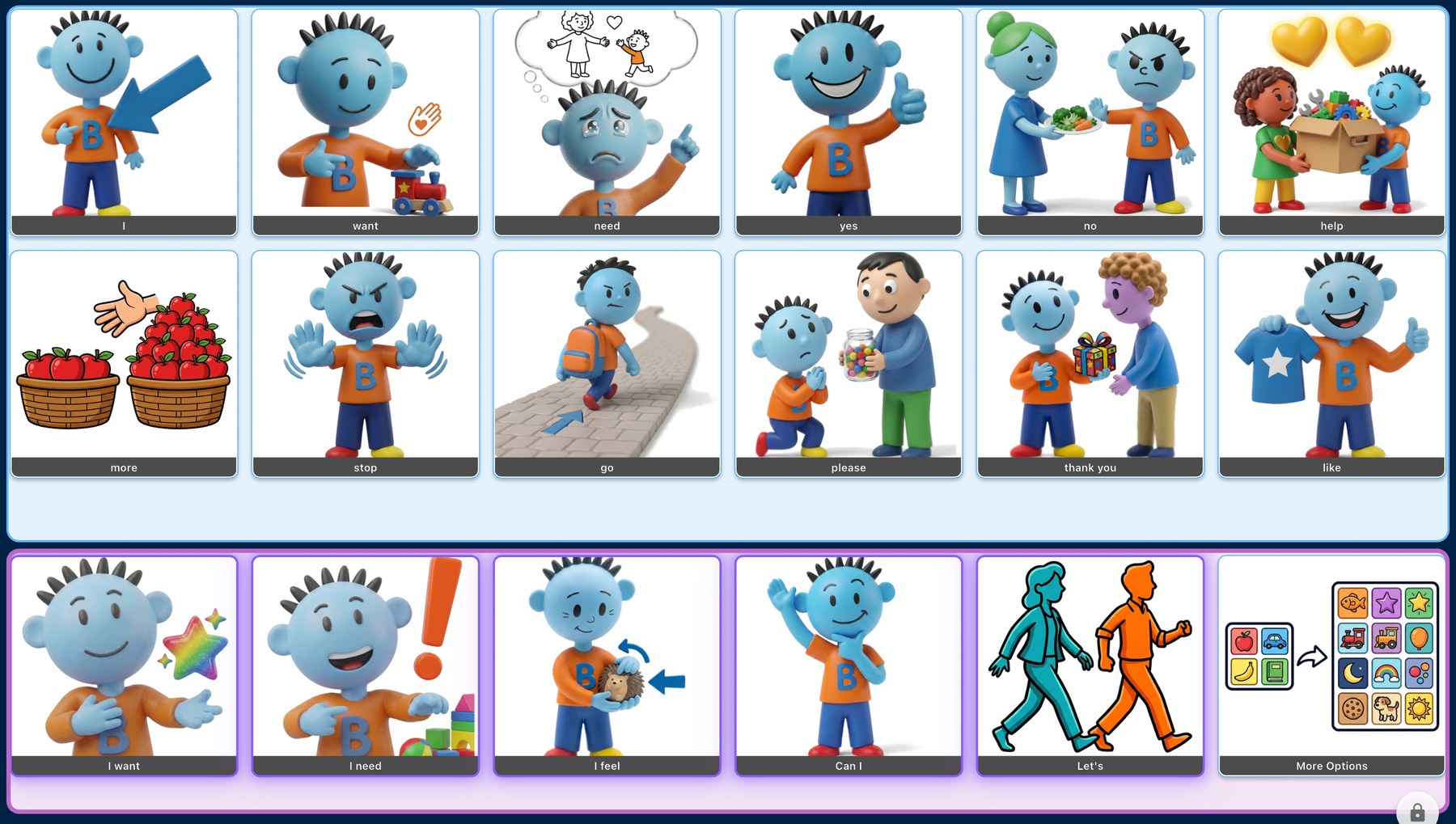
Tap: choose exactly how many options to show. Enough to choose from, never overwhelming.
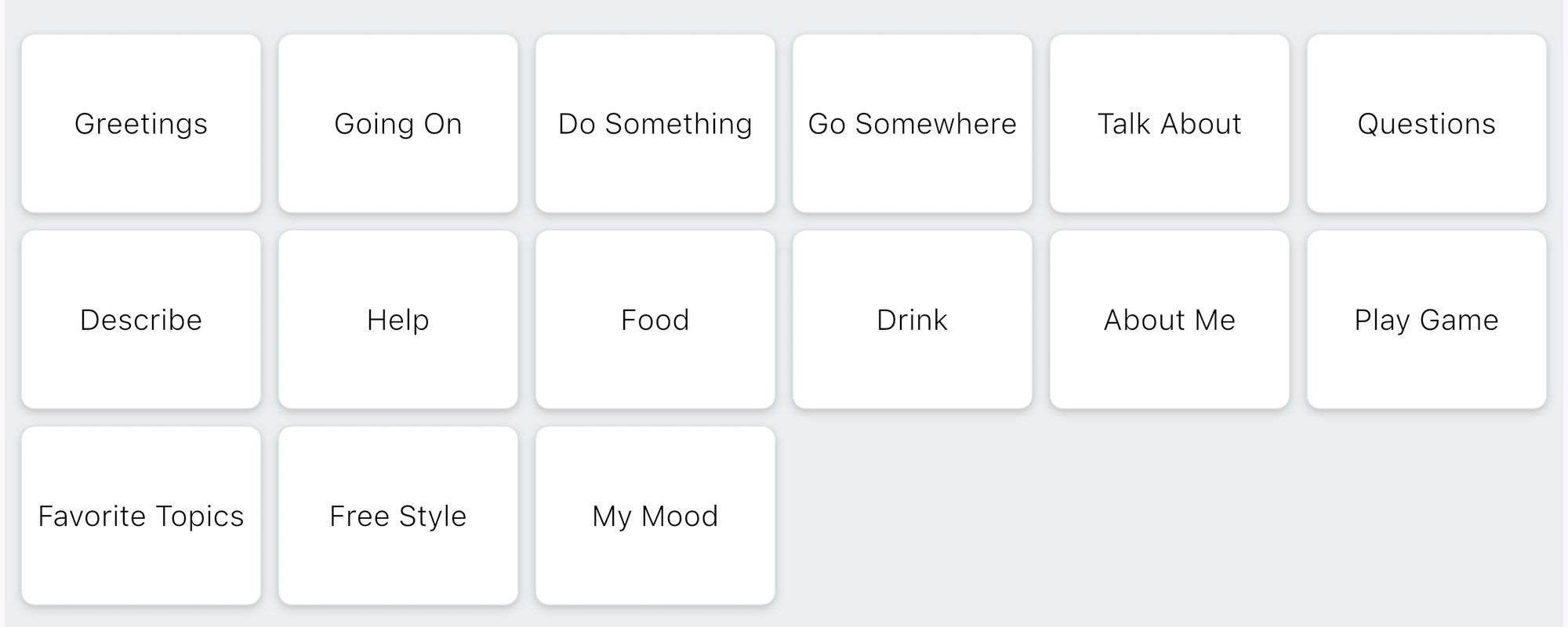
Scan: a simple grid. The count matters less, because options are scanned.
Bravo University · 102 Two Interfaces
7
Tap vs. Scan · Images
Pictures on, pictures off
Tap
Images by default
Turn them off for users who can read the options.
Scan
Text by default
Turn images on for users who like to watch the screen.
Bravo University · 102 Two Interfaces
8
Summary
Tap and Scan at a glance
Tap
Scan
Designed for
Ultimate flexibility
Ultimate efficiency
Selecting
Tap the screen
Switch, or tap the screen
Strategy
Building blocks: words, small phrases
Developed phrases
Grid
Flexible: exact number of options
Basic: count matters less
Images
On by default, can turn off
Off by default, can turn on
Wake Word
Yes
Yes
Bravo University · 102 Two Interfaces
10
Scan interface tour
The Scan screen, part by part
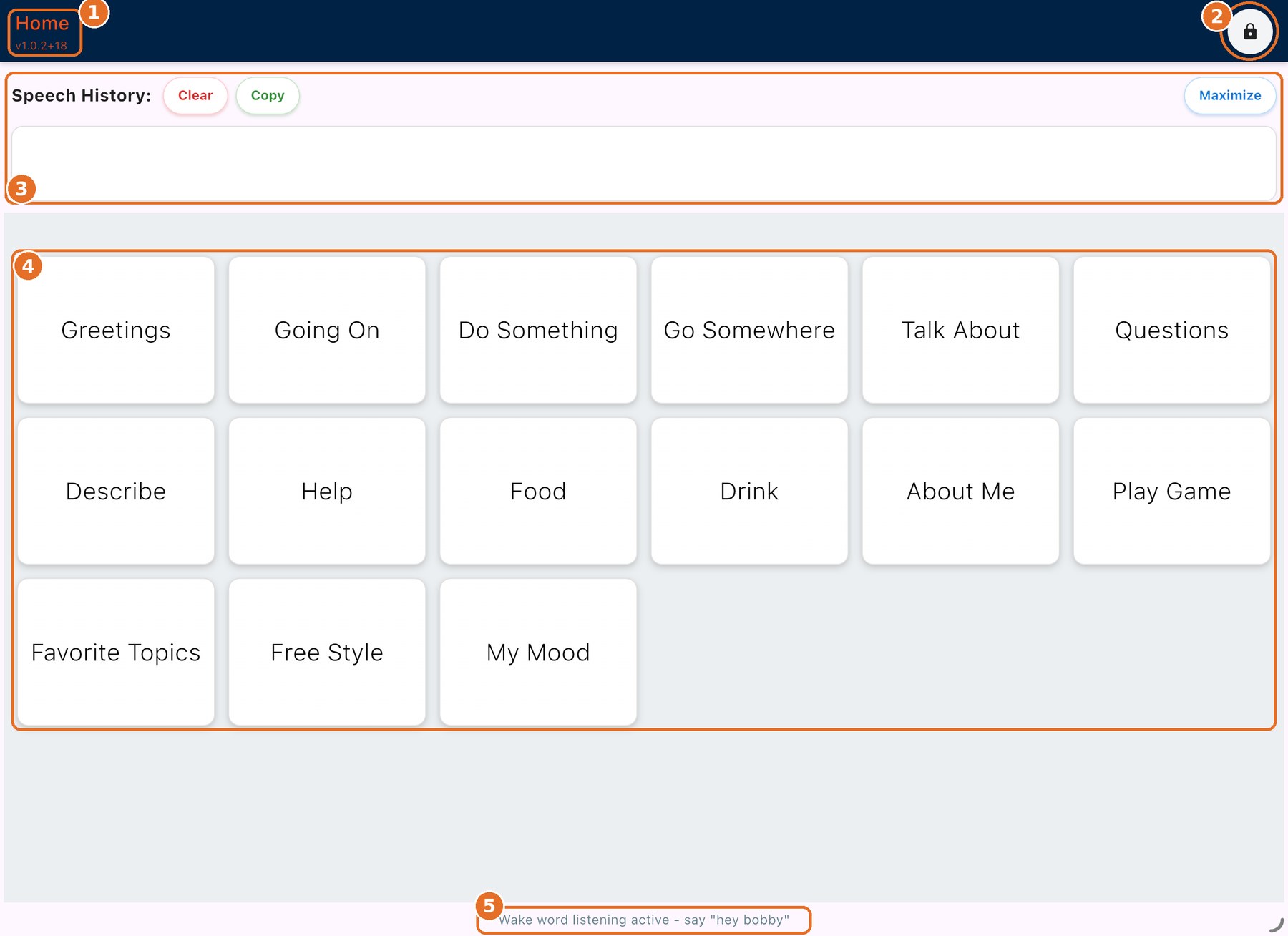
1
Title
2
Lock
3
Speech History
4
Speech Options
5
Status Message
Bravo University · 102 Two Interfaces
11
Scan interface tour
Title, Lock and Status
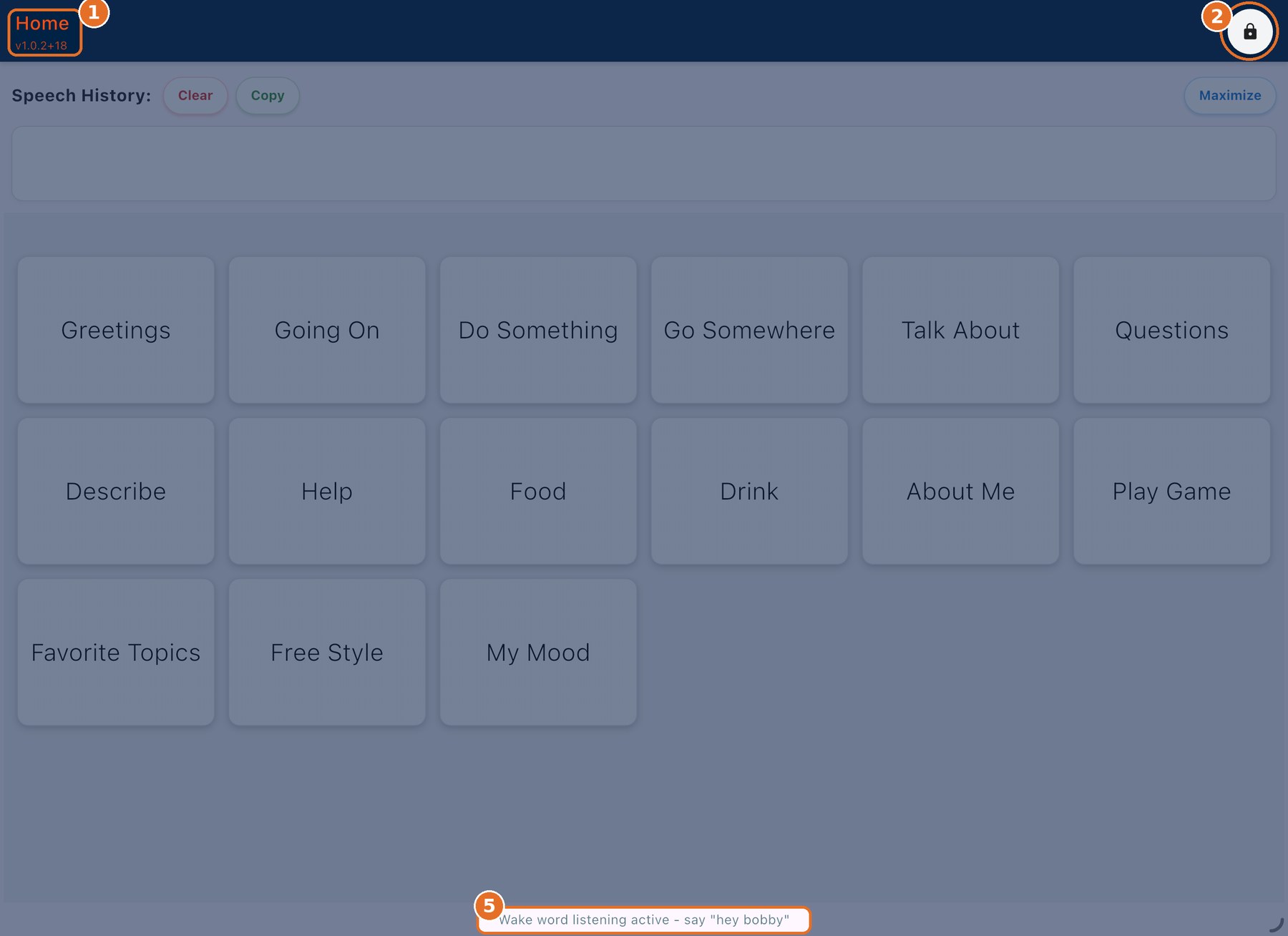
1 Title: the page you’re on, like Home or Greetings
2 Lock: opens the Admin toolbar. Default PIN 1234.
5 Status: what Bravo is doing right now
Bravo University · 102 Two Interfaces
12
Scan interface tour · 3
Speech History

Shows every option that has been selected and announced.
Clear
Empties the box
Copy
Copies options for texting or email
Maximize
Bigger text, readable from a distance
Bravo University · 102 Two Interfaces
13
Scan interface tour · 4
Speech Options
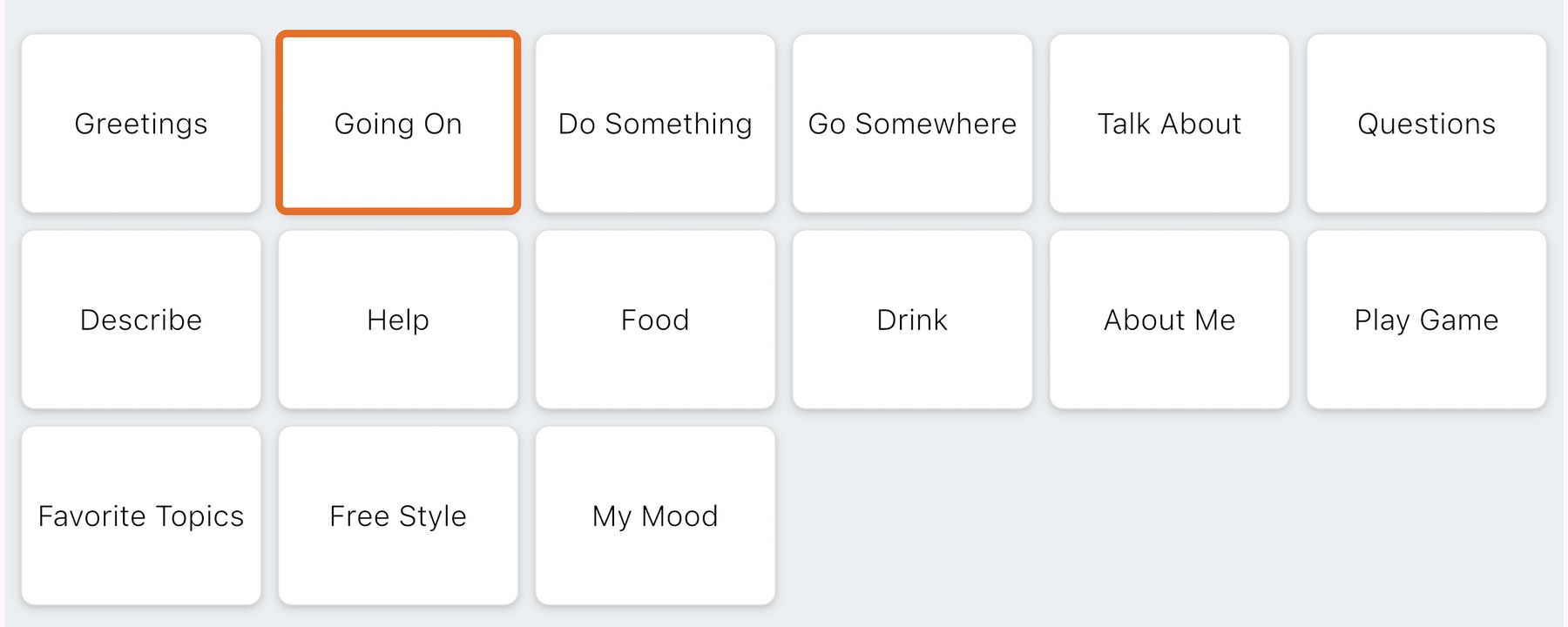
Illustration: the orange outline marks the option being scanned
Set by the Admin, or generated by AI
AI options show and read a short summary
Selected: Bravo announces the full option
A navigation target opens that page
Bravo University · 102 Two Interfaces
14
Tap interface tour
The Tap screen, part by part
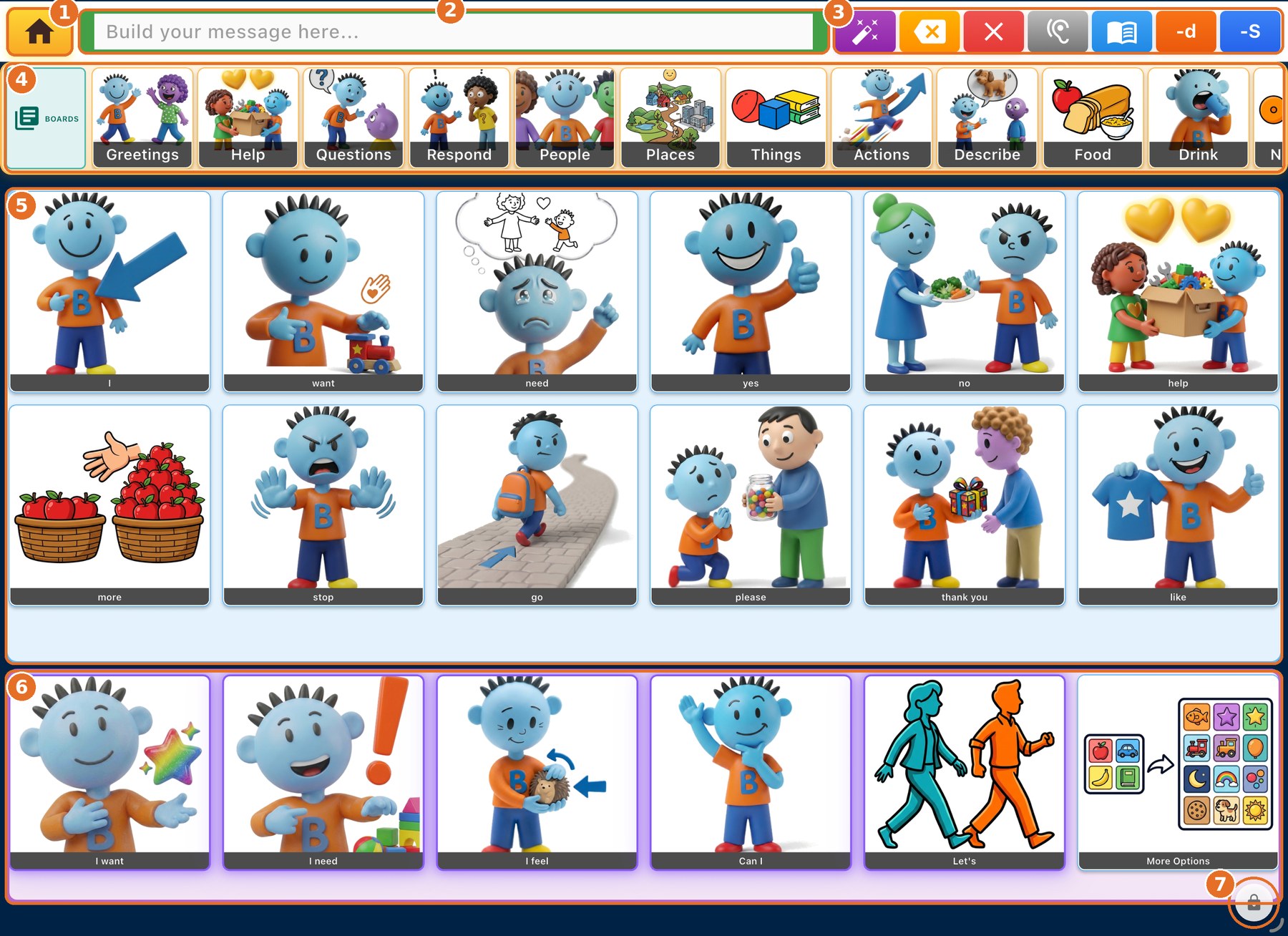
1
Home button
2
Speech History
3
Message tools
4
Boards
5
Static options
6
Dynamic options
7
Lock
Bravo University · 102 Two Interfaces
15
Tap interface tour · 1 and 2
Home and Speech History

1 · Home
Returns to the Home board
2 · Speech History
Shows the message being built. Tap it to announce it.
Bravo University · 102 Two Interfaces
16
Tap interface tour · 3 Message tools
Editing the message

1 · Clean Up
AI makes the message conversational without changing the idea
want park
→
I want to go to the park
2 · Backspace
Removes the last option added
3 · Clear
Empties the Speech History
Bravo University · 102 Two Interfaces
17
Tap interface tour · 3 Message tools
Preview, History and word forms

4 · Preview
First tap plays at 50% volume. Tap again to announce at full volume.
5 · History
Recent messages to announce again or copy
6 · Past tense
see becomes saw
7 · Plural
toy becomes toys
Bravo University · 102 Two Interfaces
18
Tap interface tour · 4
Boards

Tap a board to switch to it. Some have sub-boards.
Scroll the strip to see more boards
Boards button shows them all on one screen
Bravo University · 102 Two Interfaces
19
Tap interface tour · 5 and 6
Static and dynamic options
Static: defined on the board
Dynamic: purple outline, AI predicts the next option
More Options: next page of static options, fresh dynamic ones
Selecting announces it, and may open another board
Bravo University · 102 Two Interfaces
20
Tap interface tour · 7
Lock and Status
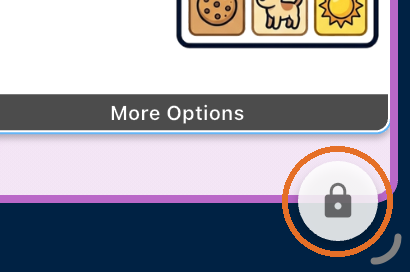
Lock
Opens the Admin toolbar. Default PIN 1234.
Status message
Shows what Bravo is doing, including what it hears when the Wake Word is active
Bravo University · 102 Two Interfaces
21