Bravo University · Course 206 · Admin Tools
Using the Location Feature
Tell Bravo where the user is, who’s there and what’s happening

The Location feature
Where, who and what
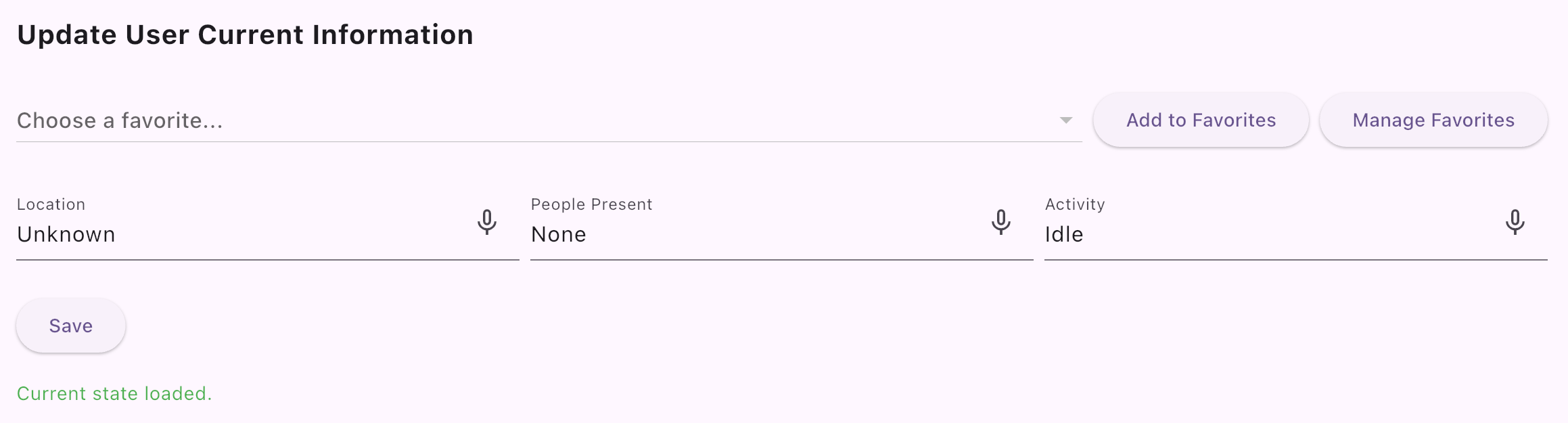
Location
Where the user is
People Present
Who’s with them
Activity
What’s going on
AI options use these details. Greetings can include the names of the people present.

Bravo University · 206 Using the Location Feature
2
Getting in
Opening the Location screen
1
Tap the Lock icon
On Tap, press and hold for 3 seconds
2
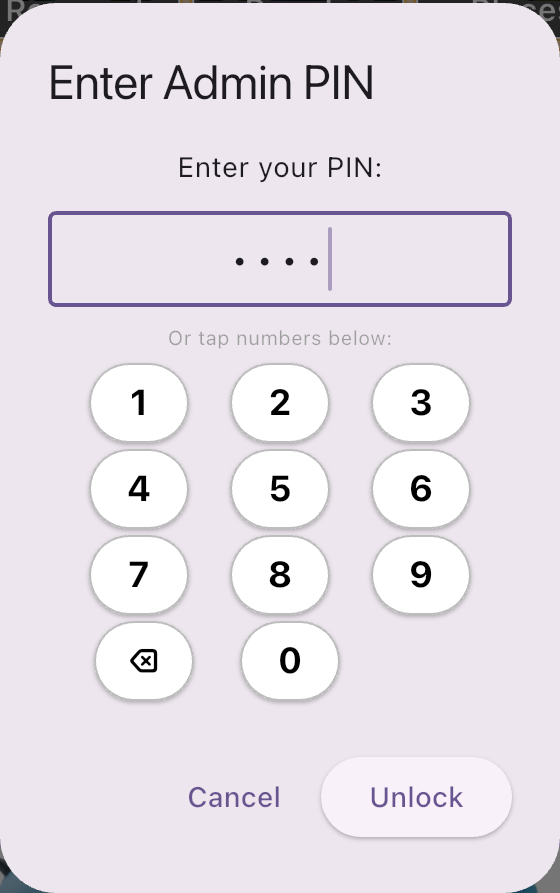
Enter the Admin PIN
The default is 1234
3
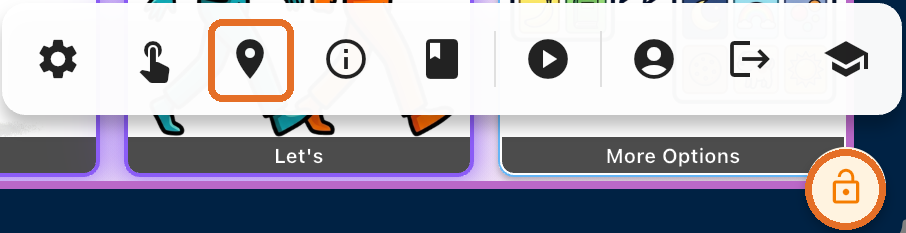
Tap the Location icon
The map pin in the Admin toolbar
Bravo University · 206 Using the Location Feature
3
Update User Current Information
Three fields and Save
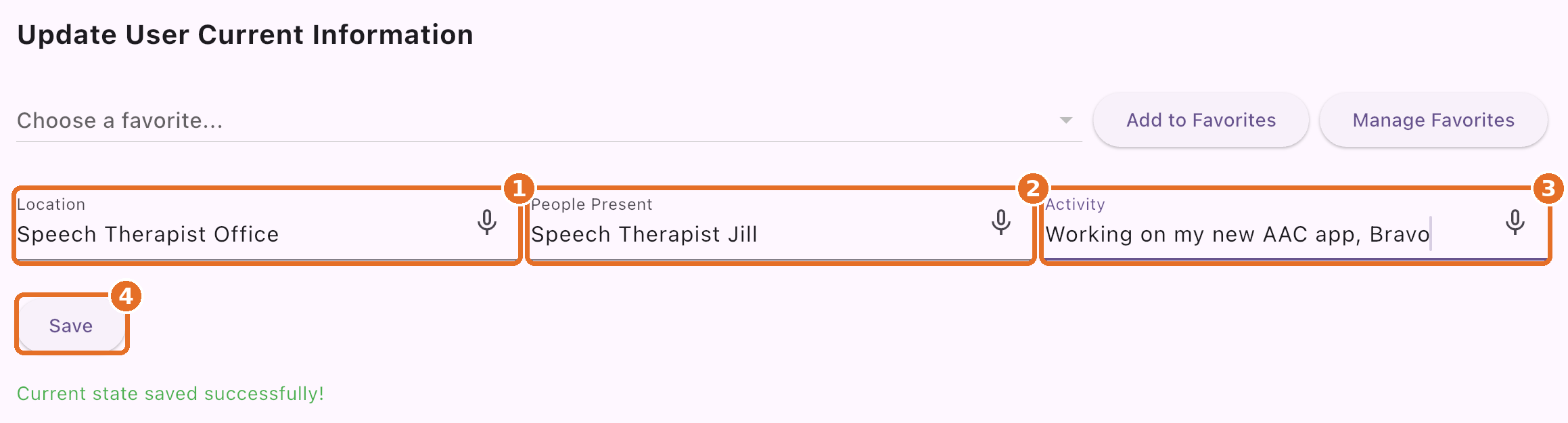
1
Location
2
People Present
3
Activity
4
Save
Bravo University · 206 Using the Location Feature
4
What to enter
Simple location, detailed activity
Location
Keep it general
home
school
speech therapist office
Activity
Add the details
“watching the Denver Broncos play the Dallas Cowboys”
Activity details can show up in the conversation options
Bravo University · 206 Using the Location Feature
5
People Present
Match your Family and Friends labels
Family and Friends record
Cousin Max
People Present
Cousin Max
Use the same label in both places so Bravo can connect them
Bravo University · 206 Using the Location Feature
6
The payoff
Details show up in the options
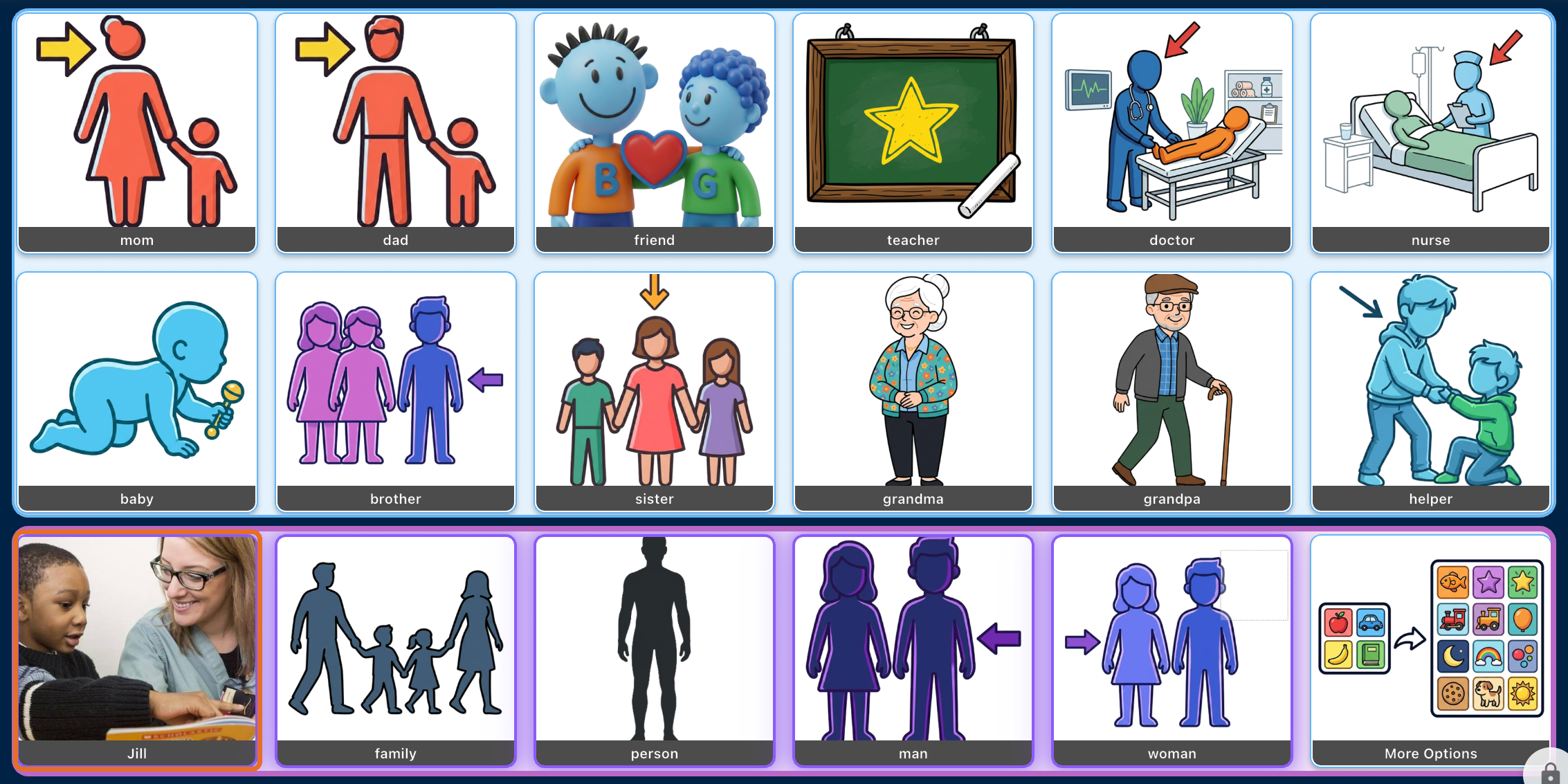
People Present
“Speech Therapist Jill”
On the People board
Jill appears in the dynamic row
Bravo University · 206 Using the Location Feature
7
Favorites
Save what repeats
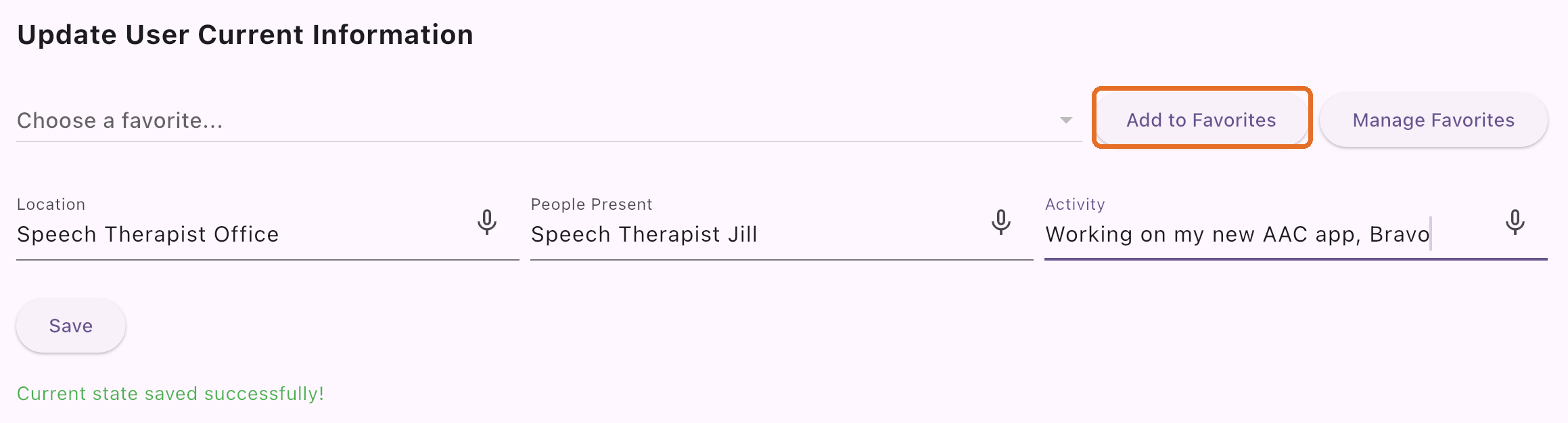
speech therapy session
math class
watching Wheel of Fortune
1
Fill in the three fields first
2
Then tap Add to Favorites
Bravo University · 206 Using the Location Feature
8
Favorites
Name it and schedule it
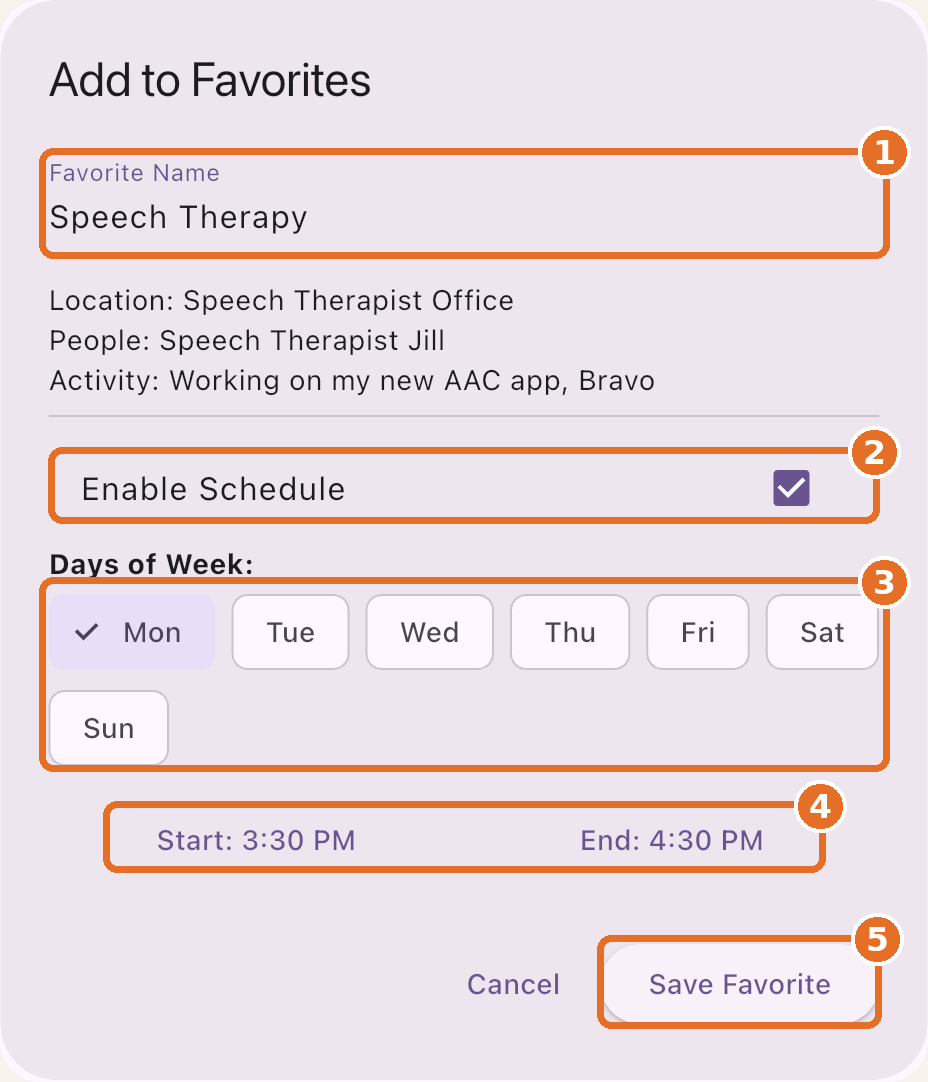
1
Favorite Name
Make it specific: “Tuesday Speech Therapy”
2
Enable Schedule
If it repeats on a set schedule
3
Days of Week
Pick one day or several
4
Start and End
When it happens
5
Save Favorite
Bravo University · 206 Using the Location Feature
9
Schedules
One Favorite or two?
Same time, several days
Tue 1:00
Thu 1:00
One Favorite
Select both days
Different times
Tue 1:00
Thu 2:00
Two Favorites
Add a separate Favorite for each
Bravo University · 206 Using the Location Feature
10
Scheduled Favorites
Bravo reminds you
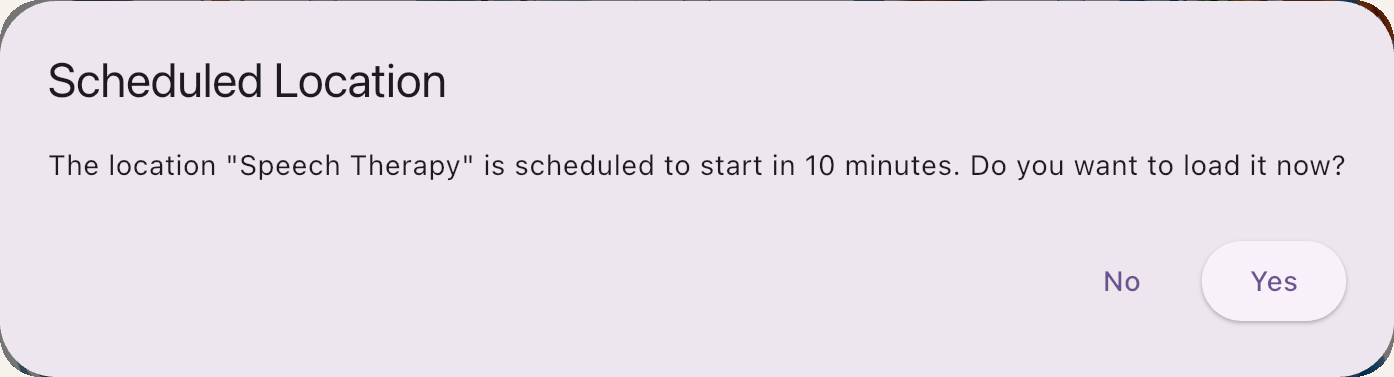

1
A prompt appears
When the event is coming up
2
Tap Yes to load it
Or No to skip
3
Options update right away
The dynamic options use the new details
Bravo University · 206 Using the Location Feature
11
Favorites
Load, edit or delete

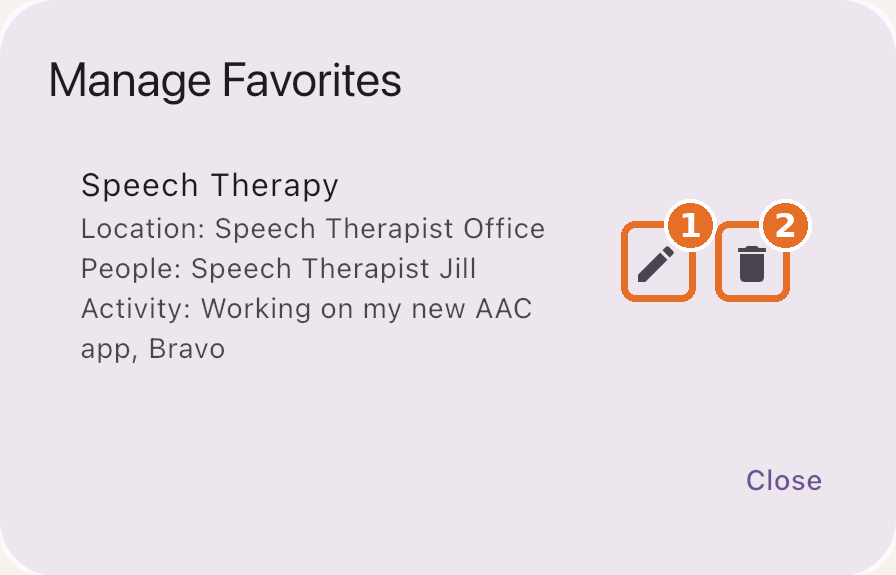
Choose a favorite
Pick a saved Favorite from the list
1
Edit
Change a Favorite
2
Delete
Remove it
Bravo University · 206 Using the Location Feature
12
Recap
Location at a glance
Item
Remember
Location
Keep it general: home, school
People Present
Match your Family and Friends labels
Activity
Add details Bravo can talk about
Favorites
Save what repeats; name them clearly
Schedule
Pick days and times; Bravo prompts you
Bravo University · 206 Using the Location Feature
13