Bravo University · Course 209 · Admin Tools
Email Messages for Scan Interface Users
Set up once, then email independently

How it works
Three pieces to set up, then it’s independent
Email account
Gmail or Yahoo, connected with an App Password
Email contacts
Added in Family & Friends
Email button
A button that opens the Email page
Once these are set up, the user writes and sends emails on their own.

Bravo University · 209 Email Messages for Scan Interface Users
2
Part 1
Email settings are in the web app

Lock › PIN › Settings gear
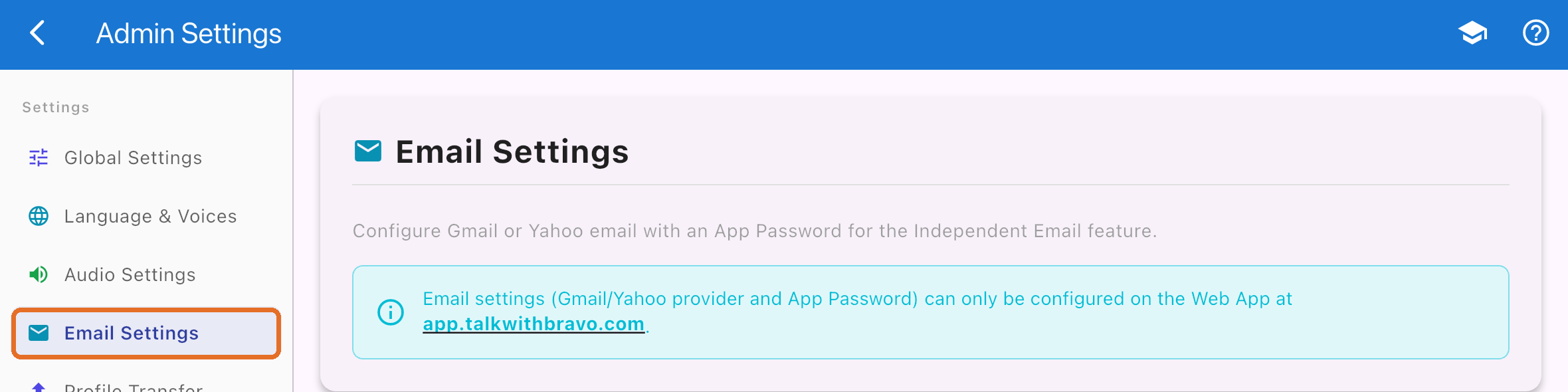
Configure email at app.talkwithbravo.com
Bravo University · 209 Email Messages for Scan Interface Users
3
Web app
Same login, same PIN
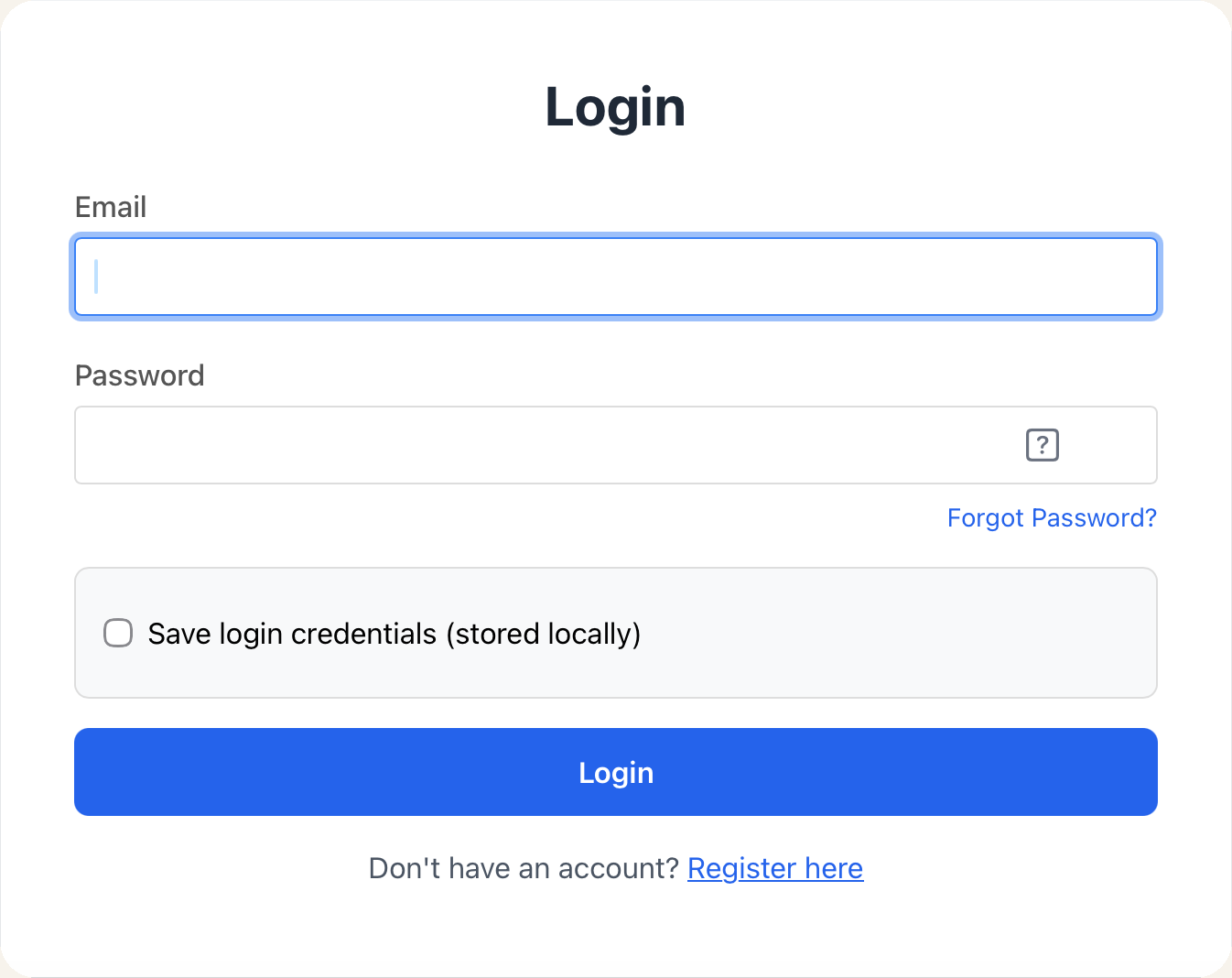
Use your usual login
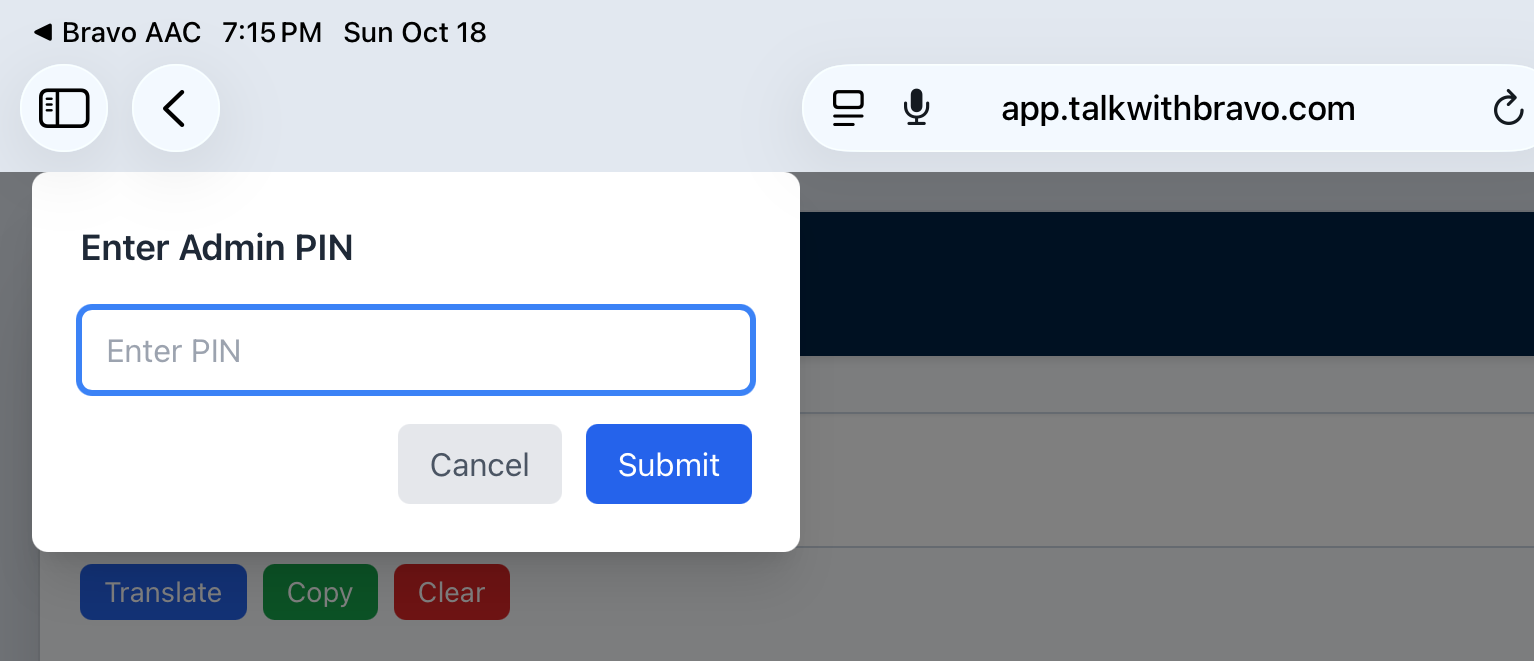
Unlock: default PIN 1234
Bravo University · 209 Email Messages for Scan Interface Users
4
Web app
Open Email Settings

1
Tap the Settings gear
In the Admin toolbar
2
Choose Email Settings
In the menu on the left
Bravo University · 209 Email Messages for Scan Interface Users
5
Web app
Connect the email account
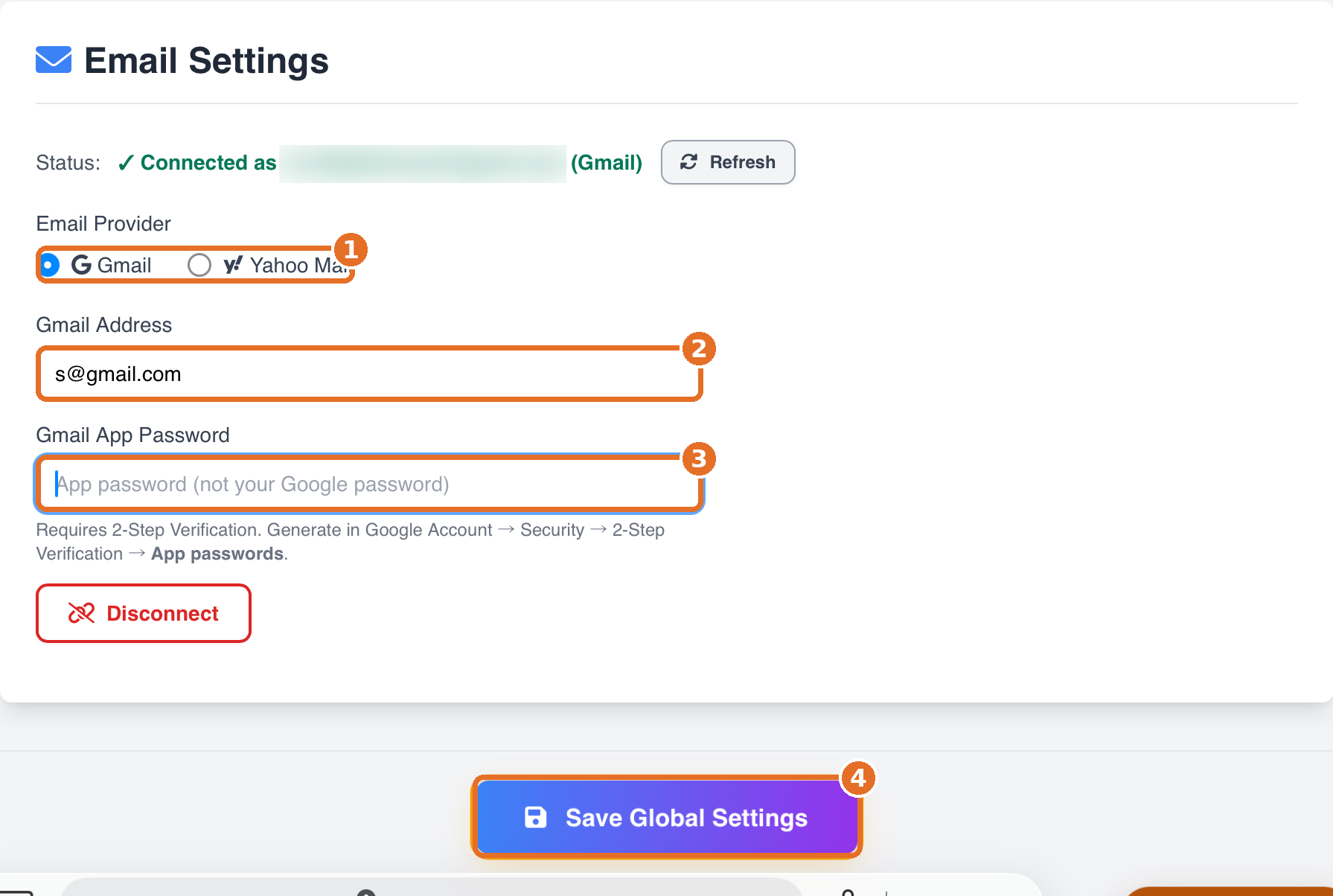
1
Choose Gmail or Yahoo Mail
2
Enter the email address
The account Bravo sends from
3
Enter the App Password
Not your regular password
4
Connect and save
Bravo University · 209 Email Messages for Scan Interface Users
6
App Password
Connect without sharing your password
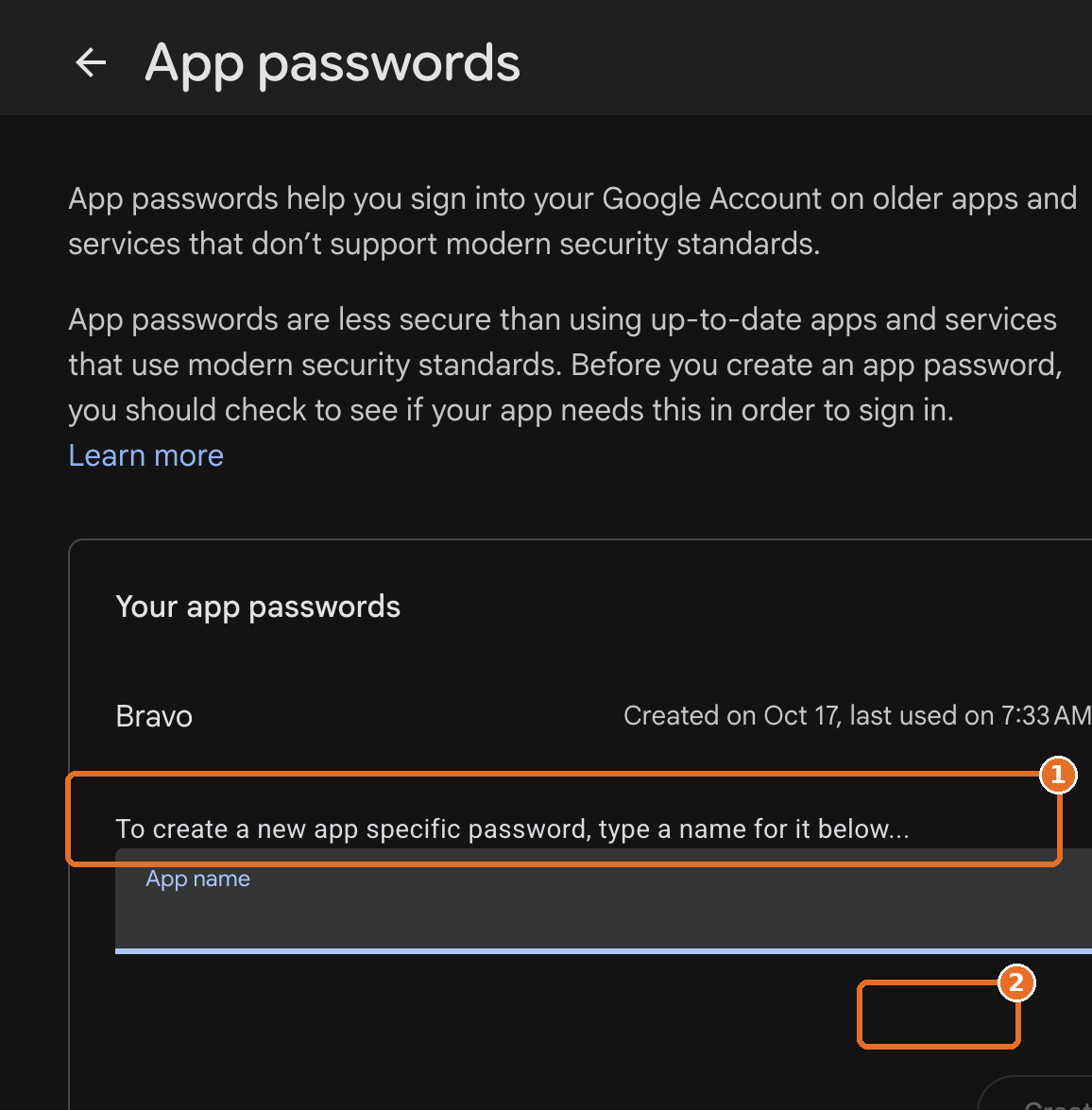
An App Password lets Bravo use the email account without sharing your personal password.
Gmail
myaccount.google.com/apppasswords
Yahoo
login.yahoo.com/myaccount/security
1
Name it, like “Bravo”
2
Create, then copy it into Bravo
Bravo University · 209 Email Messages for Scan Interface Users
7
Web app
Connected
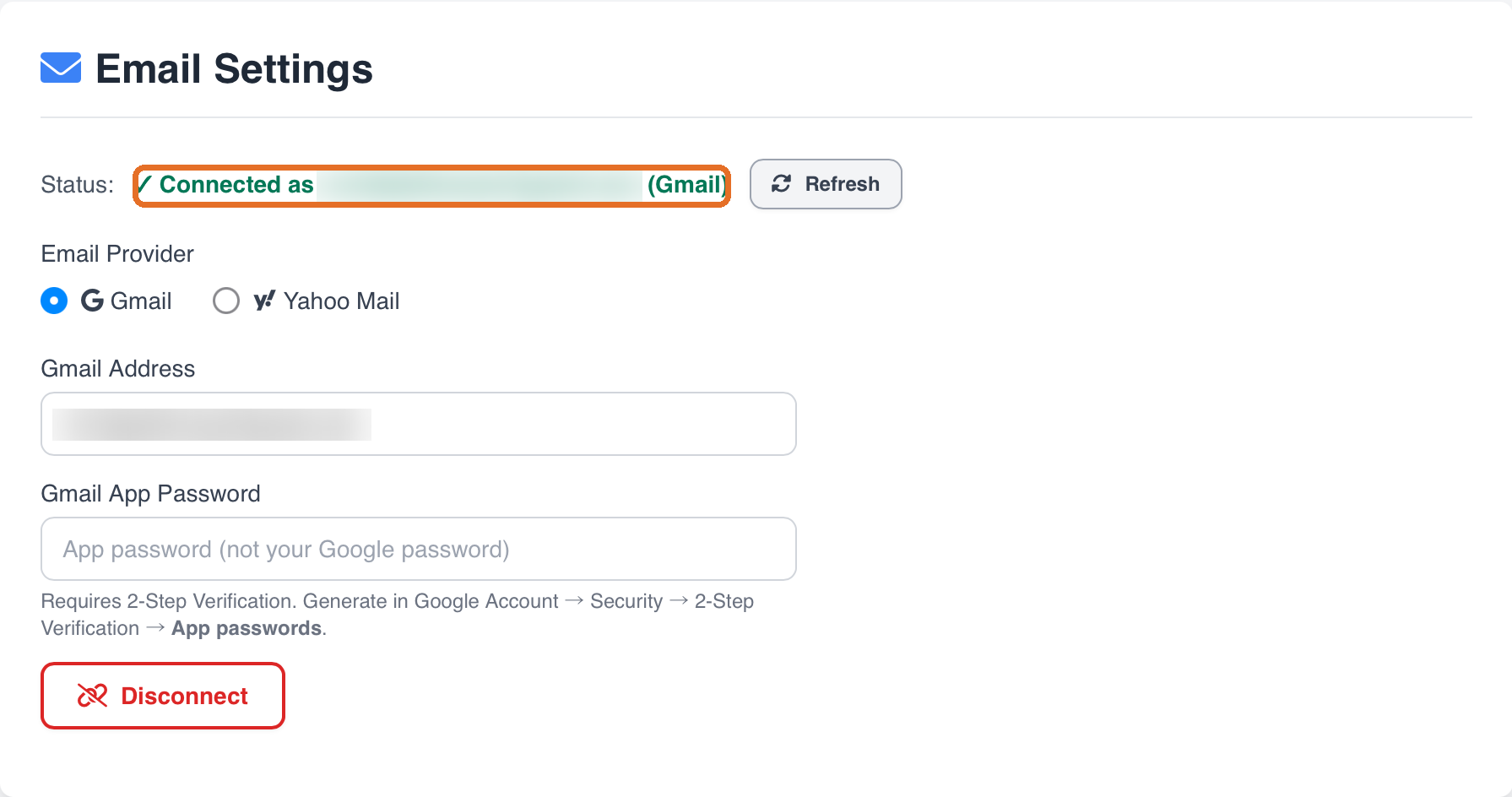
The status shows Connected. Disconnect is there if you ever need to change accounts.
Bravo University · 209 Email Messages for Scan Interface Users
8
Part 2
Opening Family & Friends
1
Tap the Lock icon
Then enter the Admin PIN
2
Tap the User Info icon
The “i” in the Admin toolbar
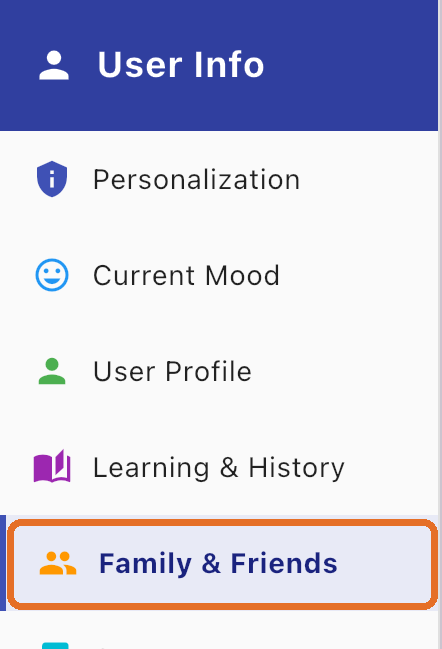
3
Tap Family & Friends
In the menu on the left

Bravo University · 209 Email Messages for Scan Interface Users
9
Part 2
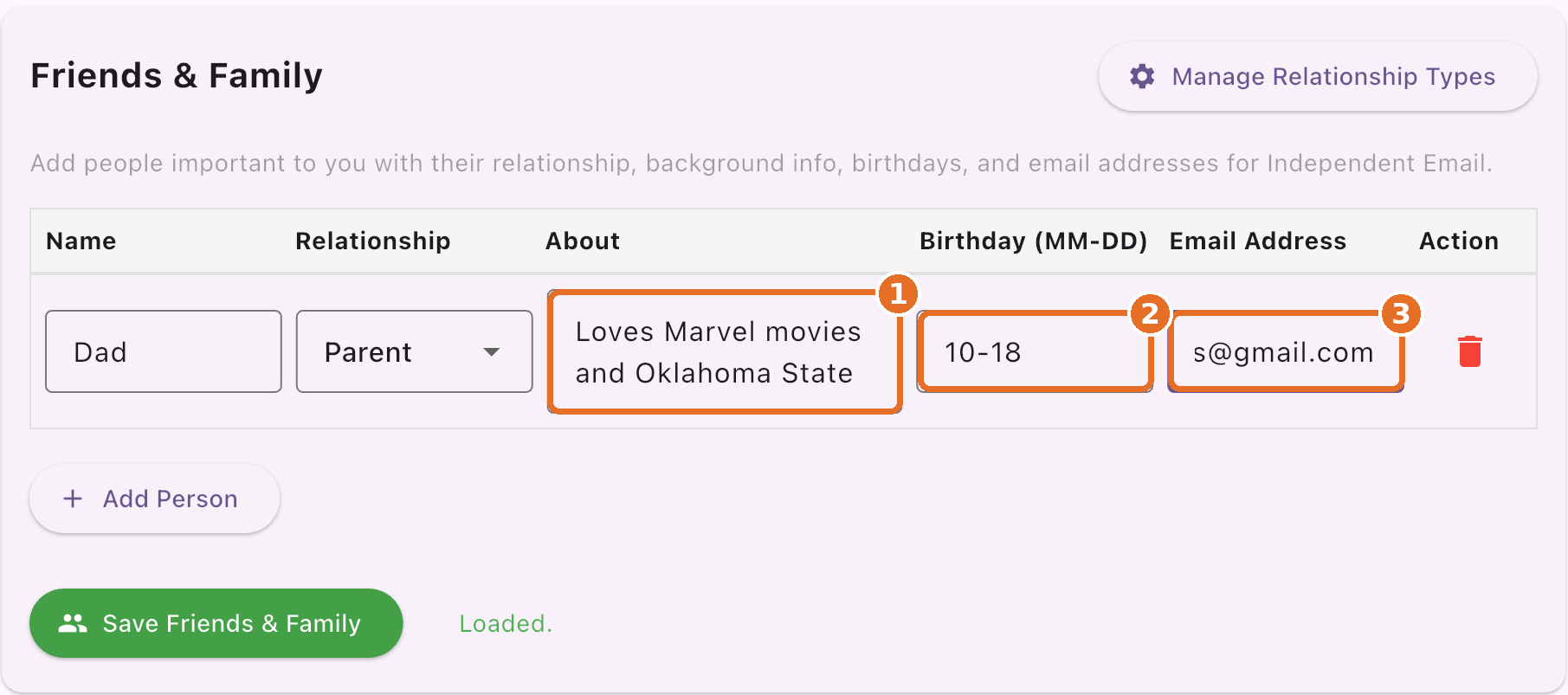
Add email contacts
1
About
What they like
2
Birthday
Bravo can mention it when it’s close
3
Email Address
Required for email
Bravo University · 209 Email Messages for Scan Interface Users
10
Part 3
Opening Page & Button settings
1
Tap the Lock icon
Then enter the Admin PIN
2
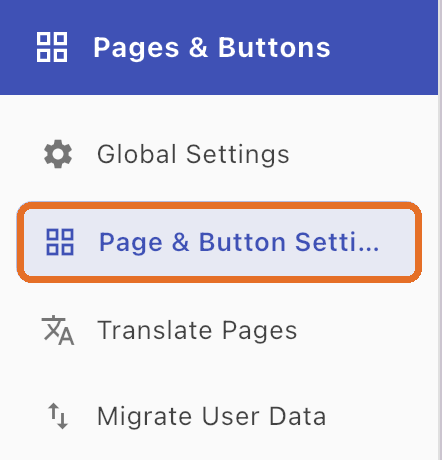
Tap Page & Button settings
The grid icon
3
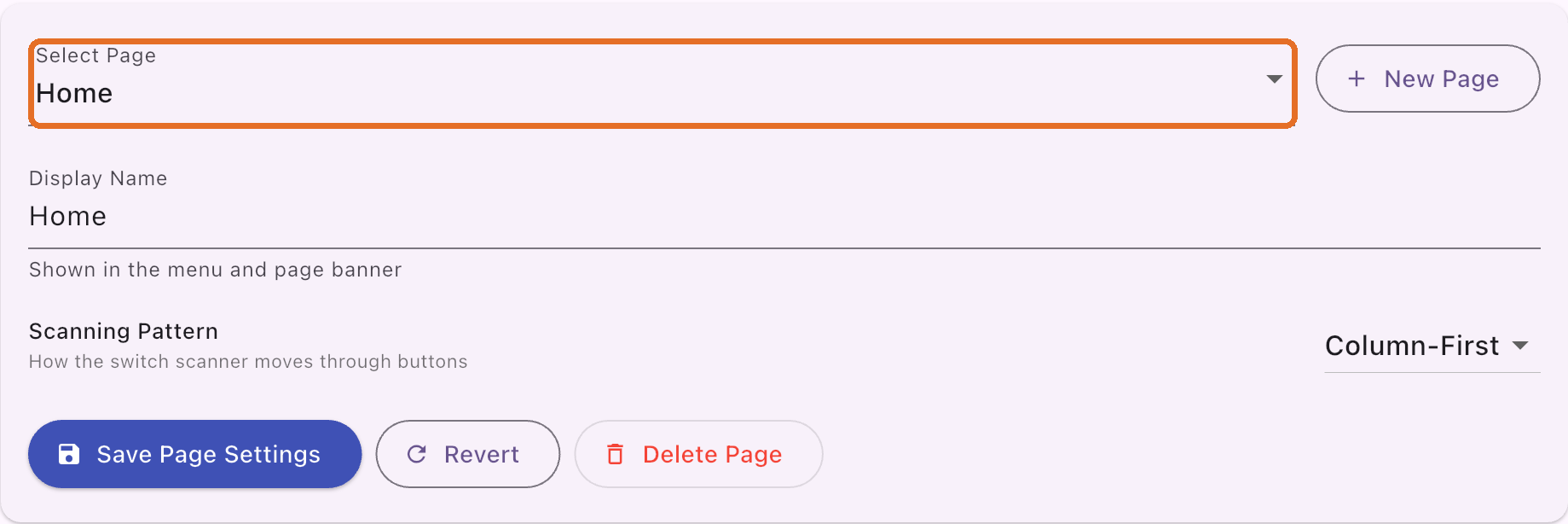
Select the page
Where the Email button goes

Bravo University · 209 Email Messages for Scan Interface Users
11
Part 3
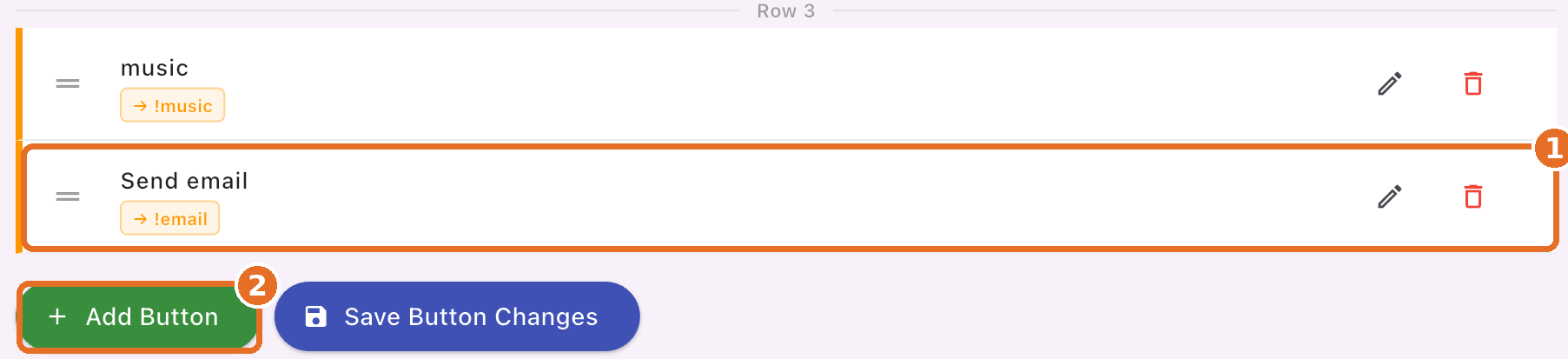
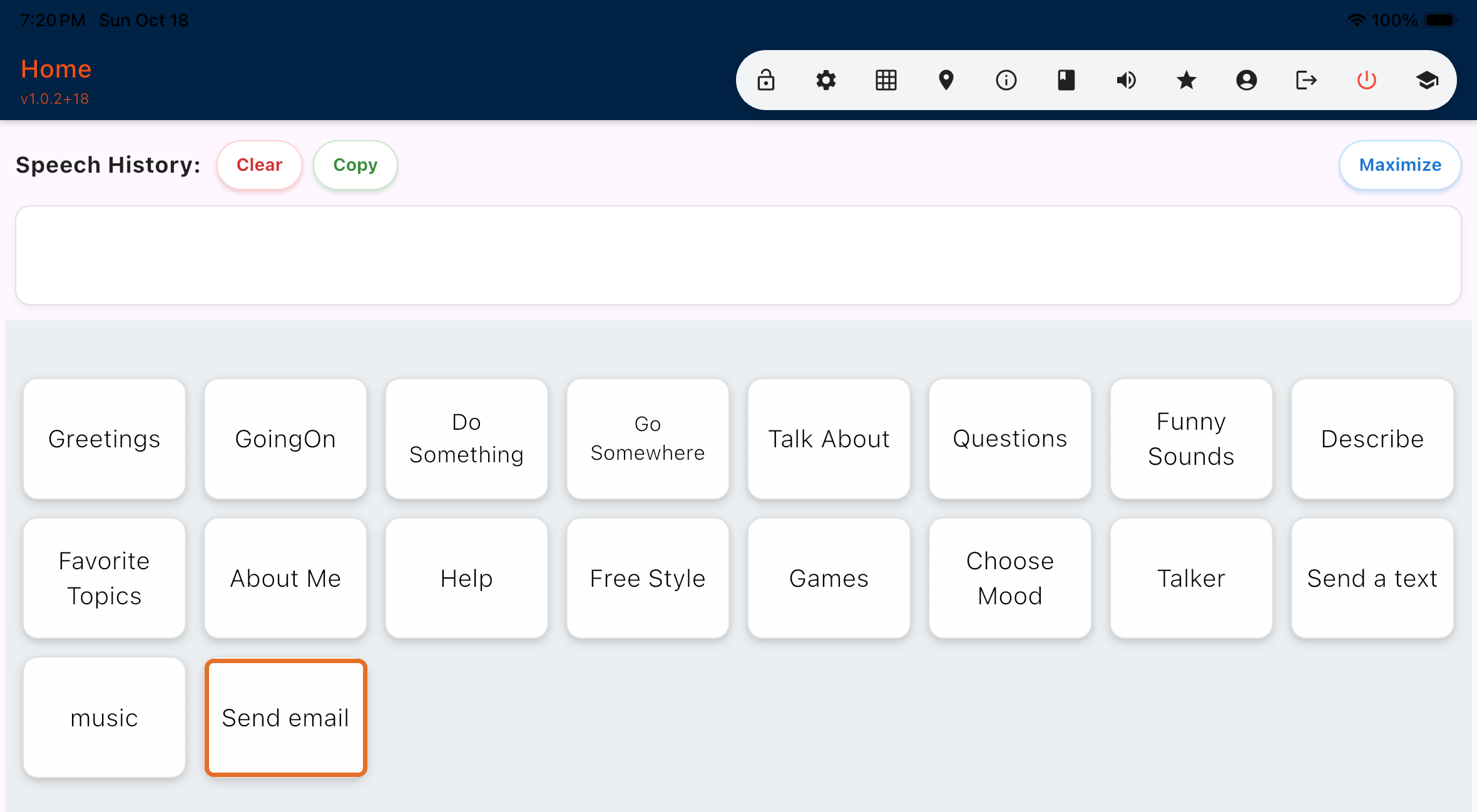
Add the Email button
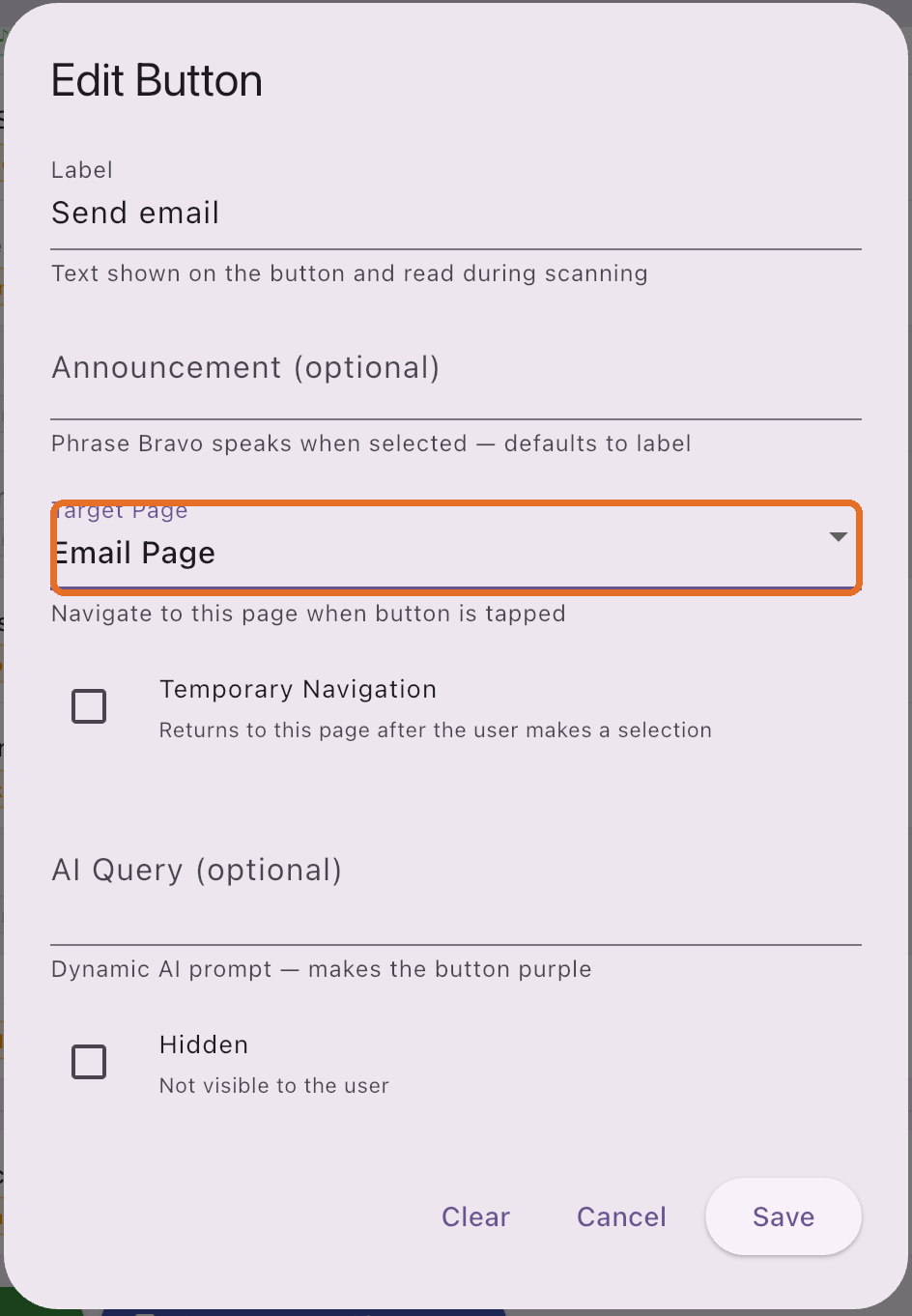
Email is a Special page: set it as the Target Page
Bravo University · 209 Email Messages for Scan Interface Users
12
Part 3
Ready to go
Bravo University · 209 Email Messages for Scan Interface Users
13
Step 1
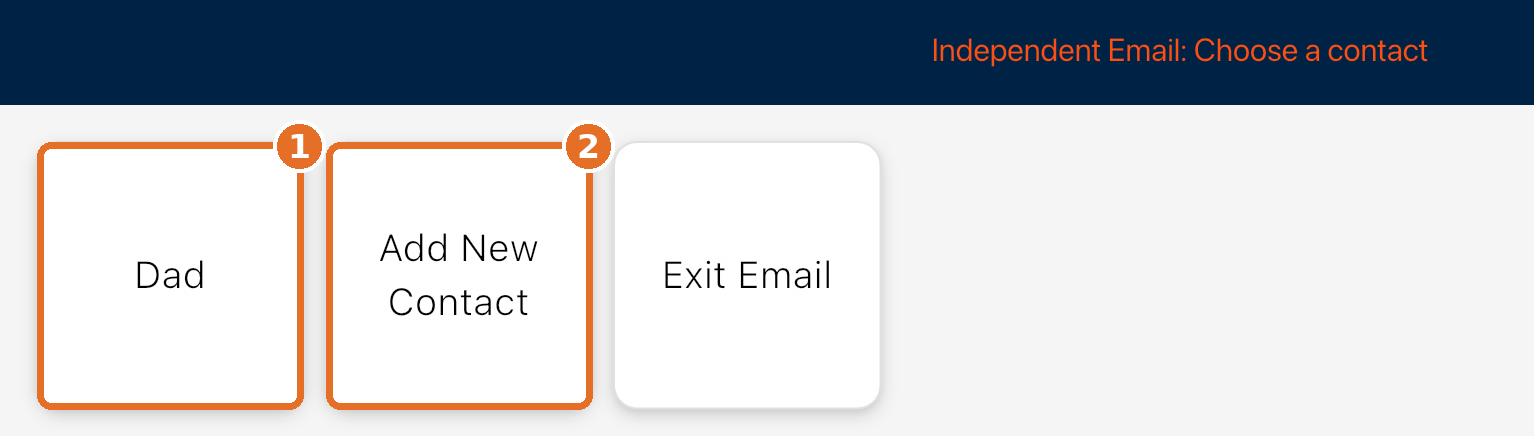
Choose a contact
1
A contact
Everyone in Family & Friends with an email
2
Add New Contact
Bravo announces the user wants to add someone. Ask who, then add them in Family & Friends.
Bravo University · 209 Email Messages for Scan Interface Users
15
Step 2
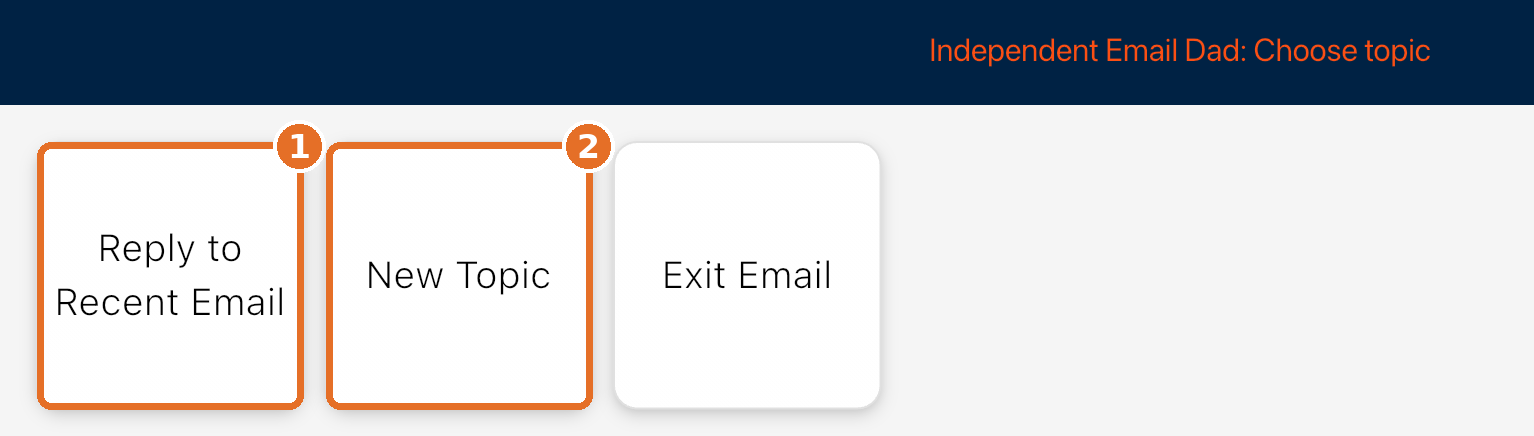
Reply or new topic?
1
Reply to Recent Email
A partner reads the email
2
New Topic
Start a new message
Bravo University · 209 Email Messages for Scan Interface Users
16
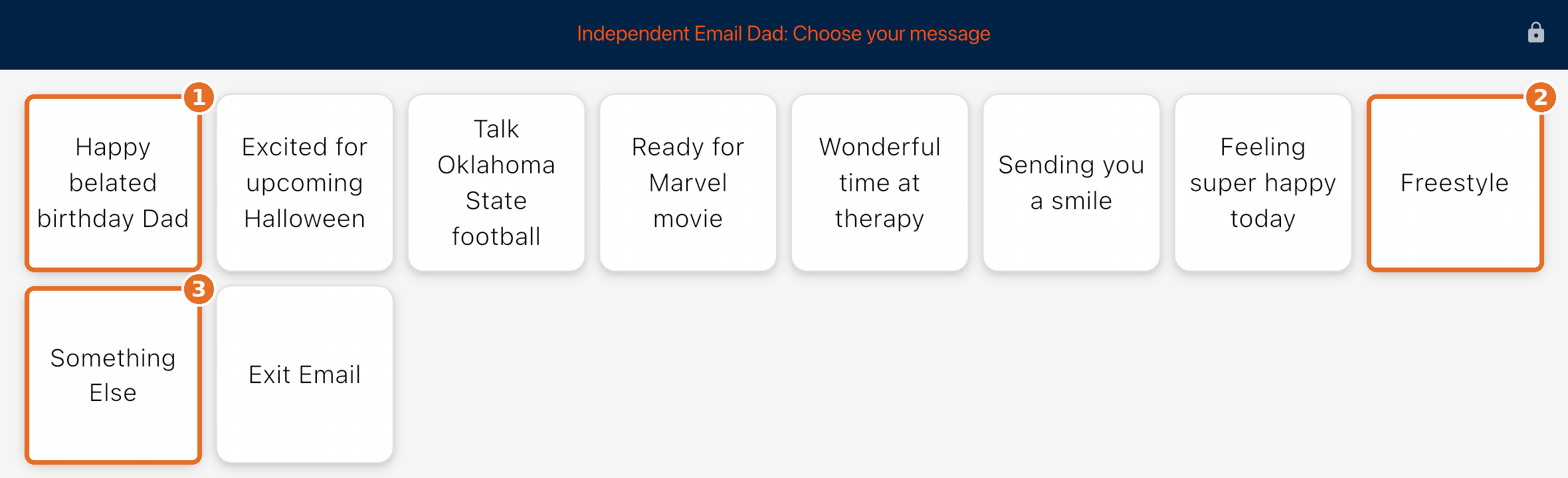
New Topic
Options personalized for Dad
1
Happy belated birthday Dad
From Dad’s birthday
2
Freestyle
Choose your own words
3
Something Else
A new batch of options
Bravo University · 209 Email Messages for Scan Interface Users
17
New Topic
Send it, or add more
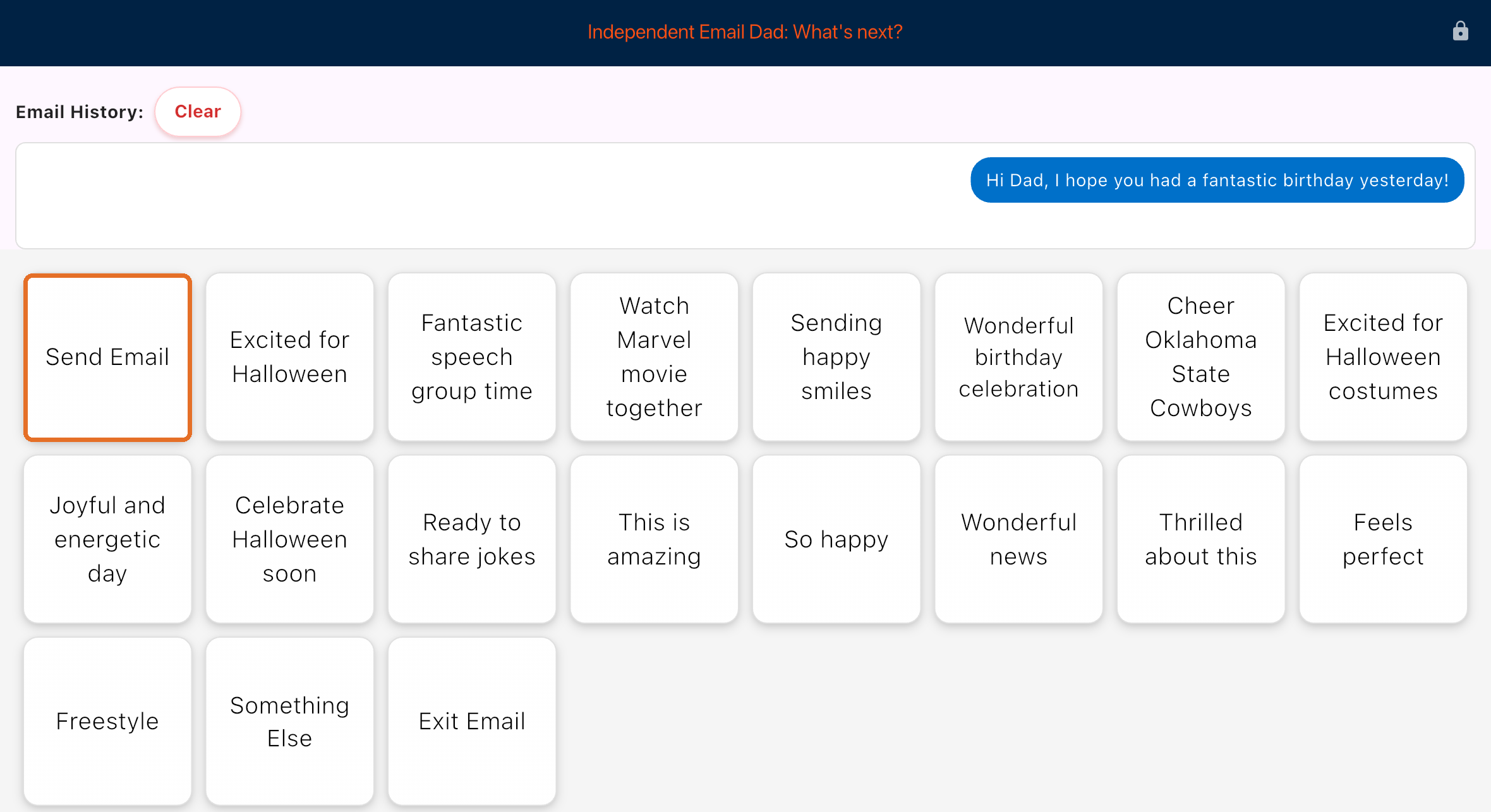
Bravo writes the full message, then offers Send Email and follow-ups
Bravo University · 209 Email Messages for Scan Interface Users
18
New Topic
Email sent
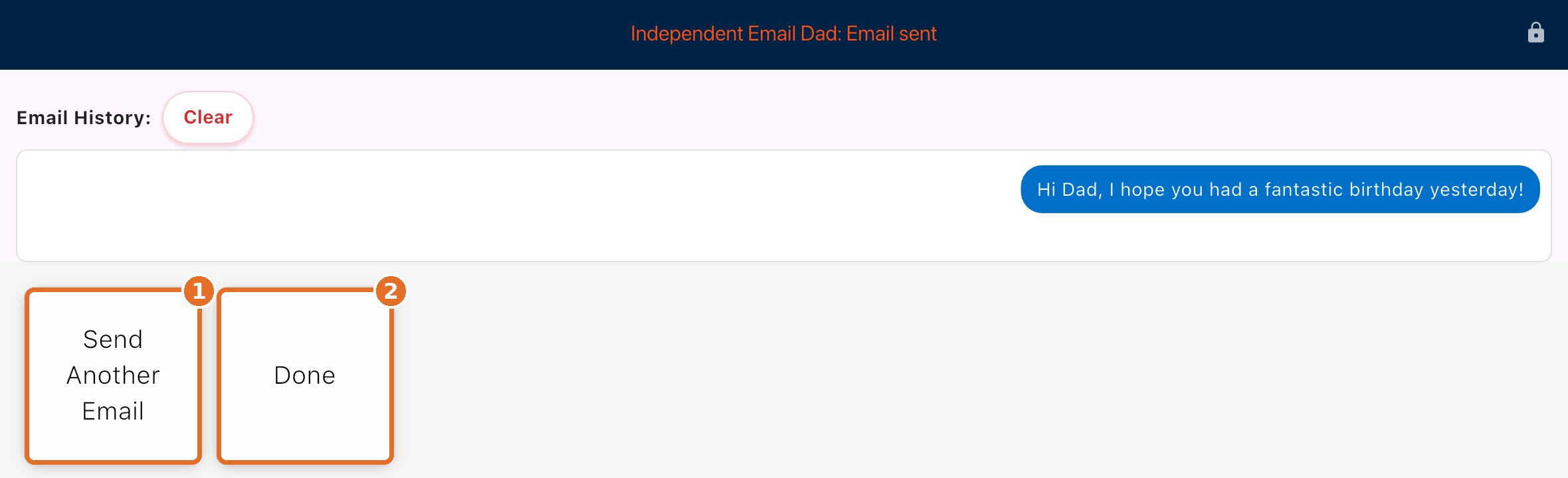
1
Send Another Email
2
Done
Back to the Home page
Bravo University · 209 Email Messages for Scan Interface Users
19
Part 5
Replying to a recent email
Bravo announces the user needs help reading an email from the contact
A partner finds the email
The most recent one from that contact
Bravo University · 209 Email Messages for Scan Interface Users
20
Reply
The partner reads the email
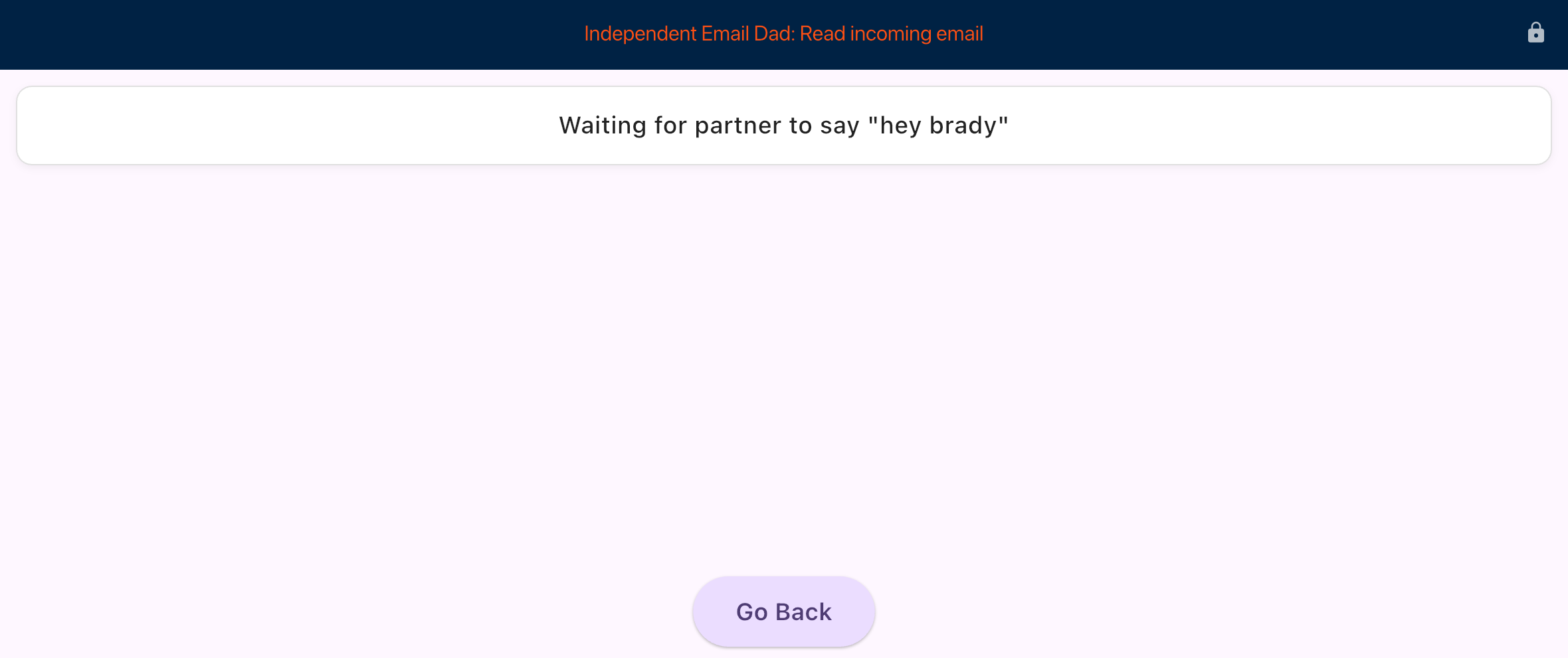
1 · Say the Wake Word
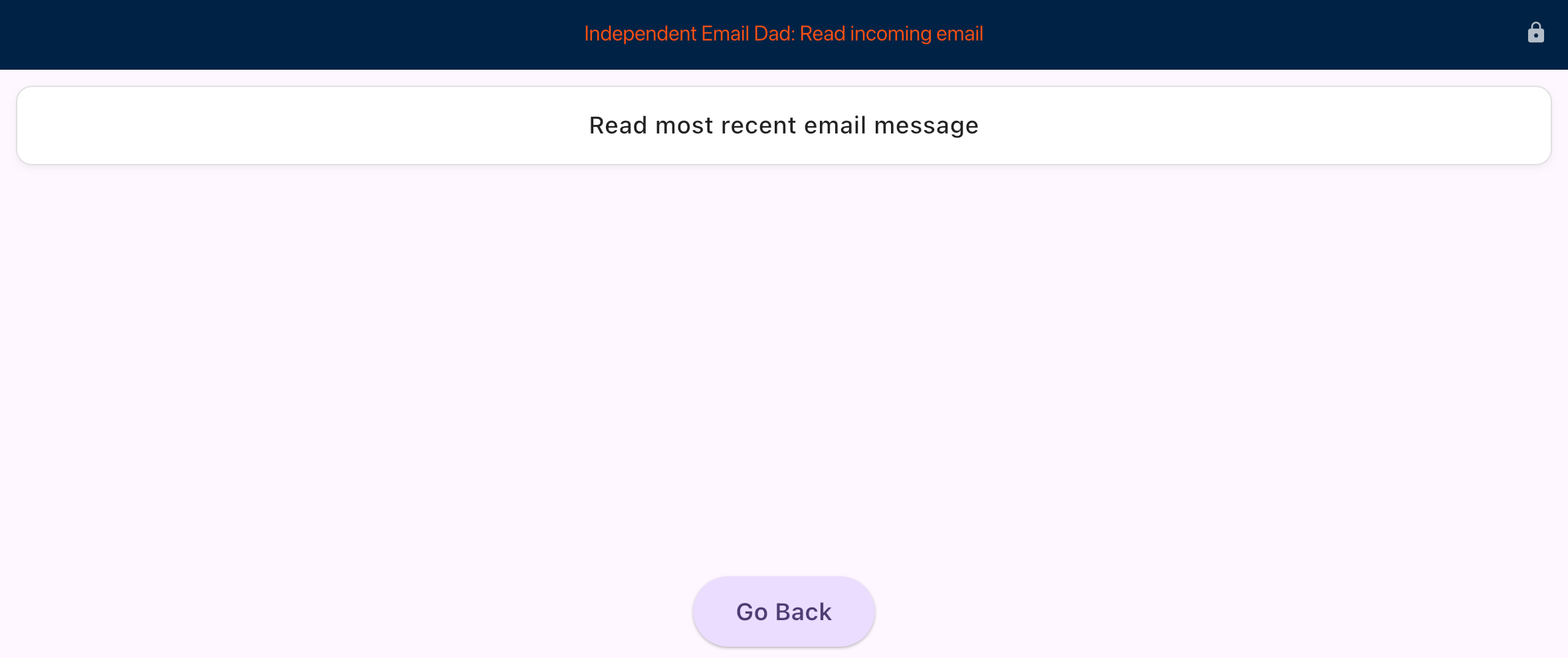
2 · Read the email
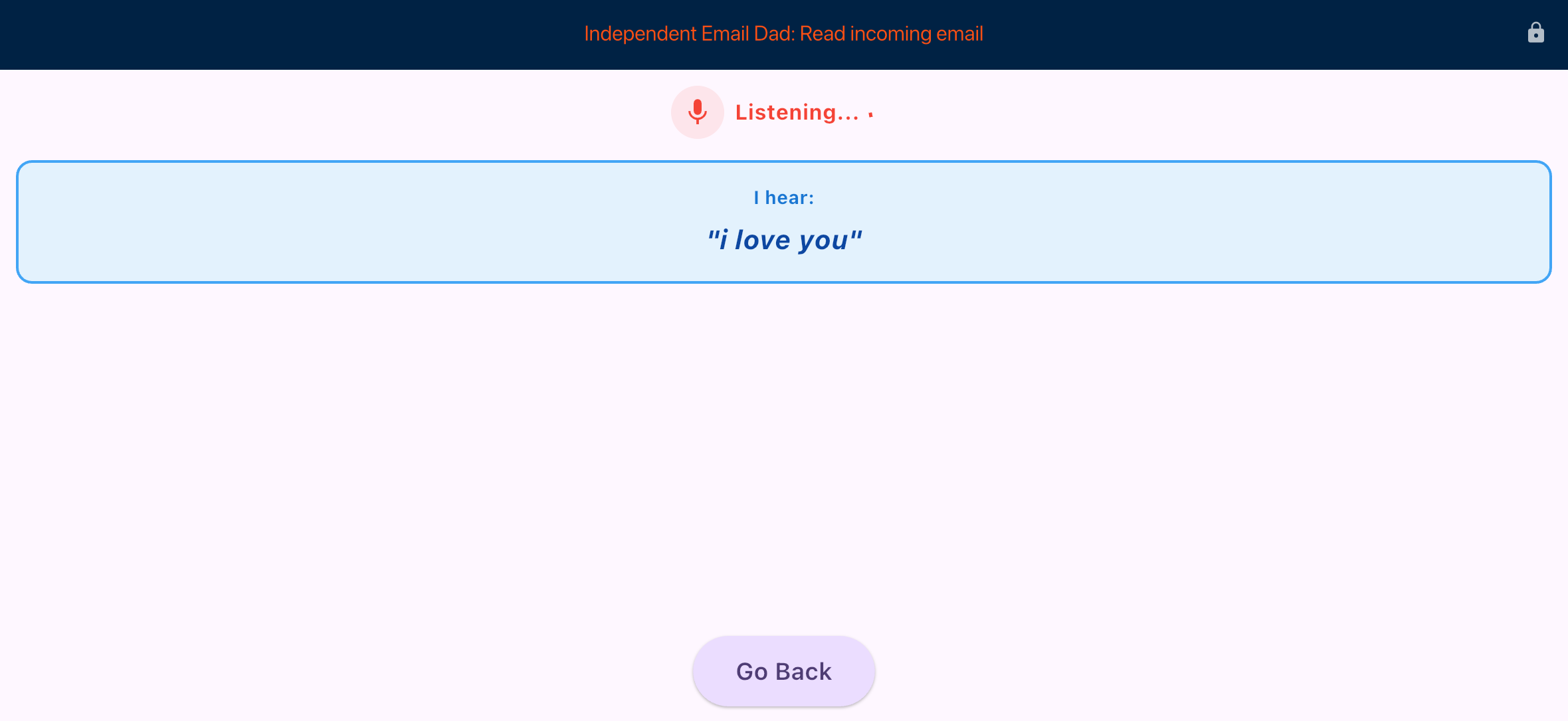
3 · Bravo hears it
Bravo University · 209 Email Messages for Scan Interface Users
21
Reply
Options to answer the email
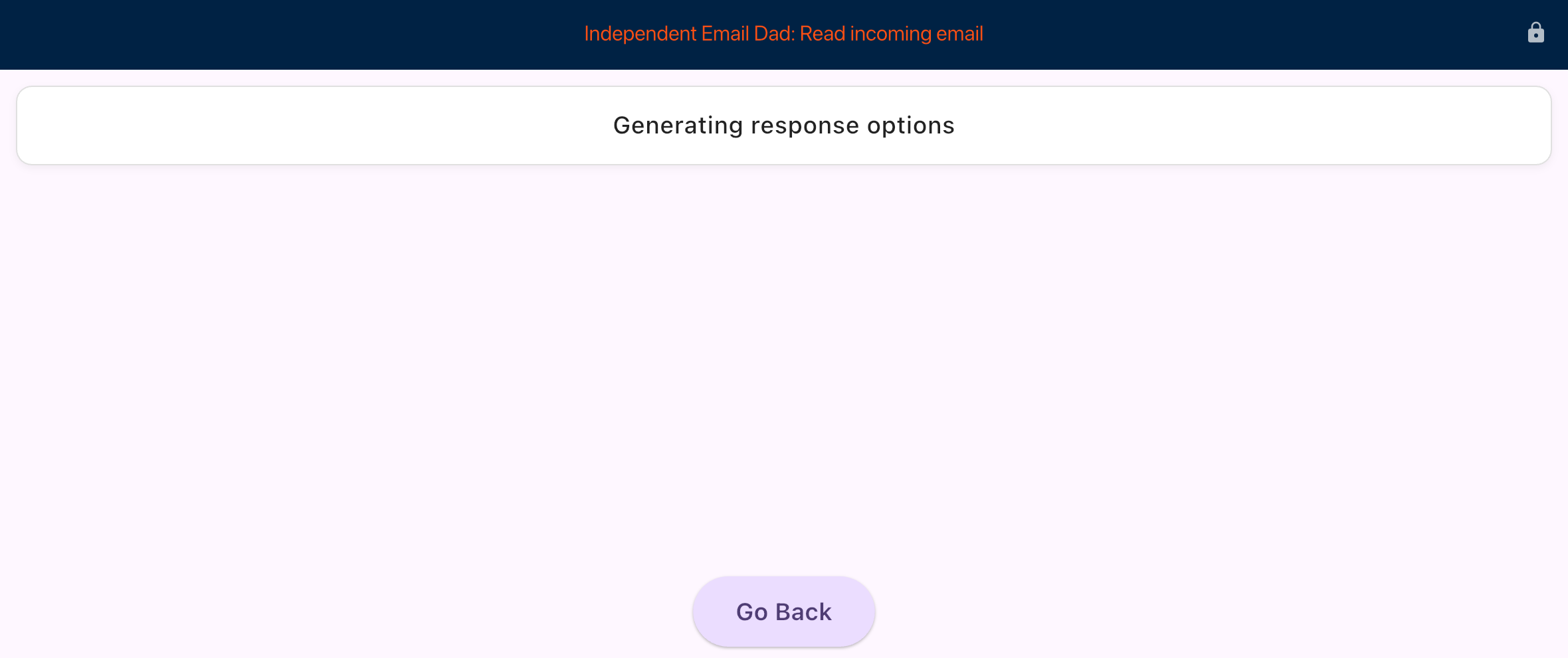
Generating
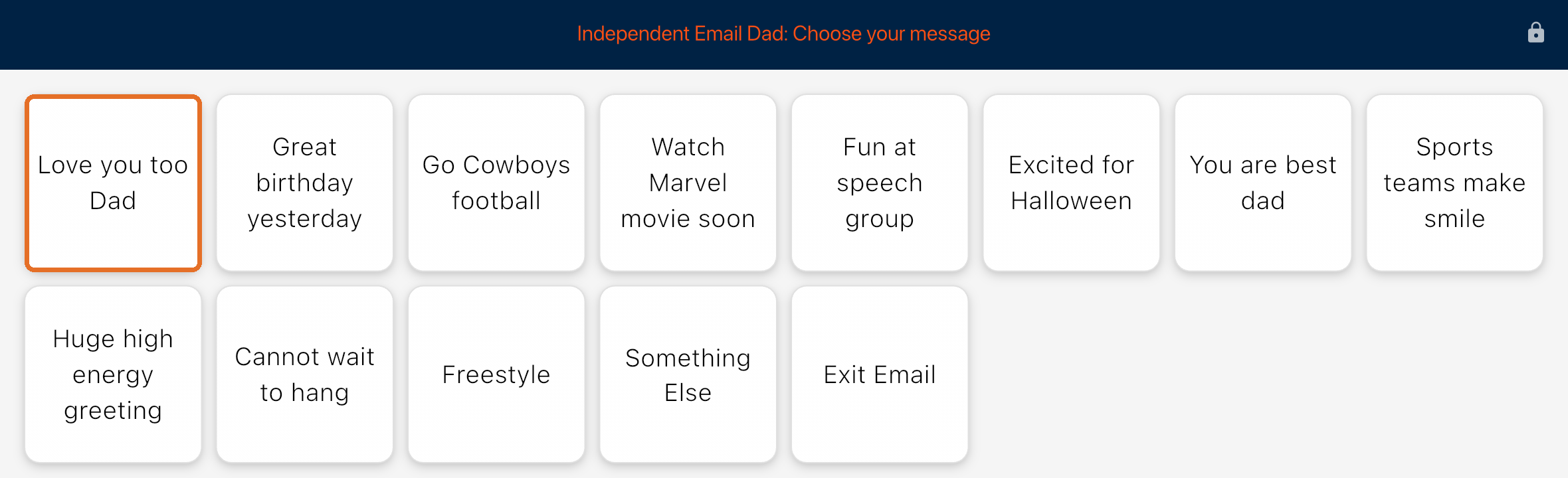
Answers to “I love you”
Bravo University · 209 Email Messages for Scan Interface Users
22
Reply
Send Email, and it’s sent
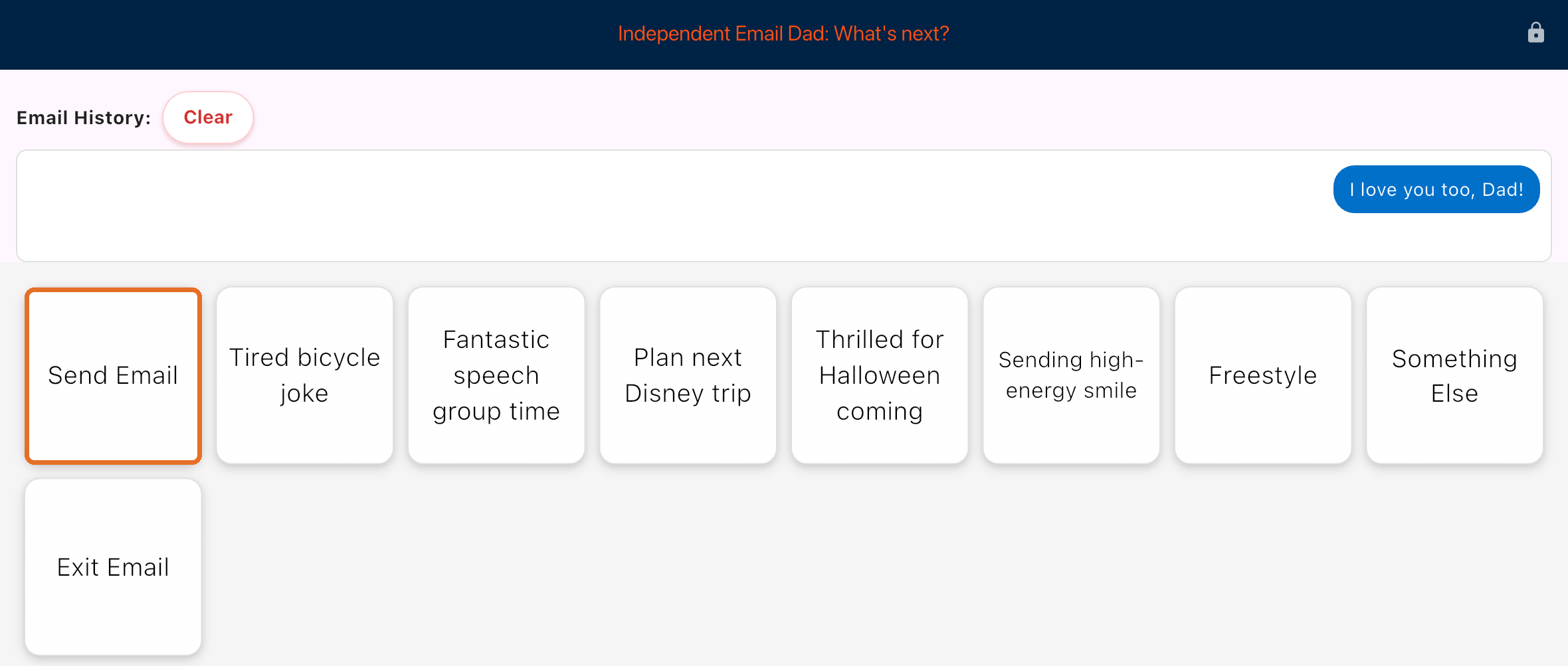
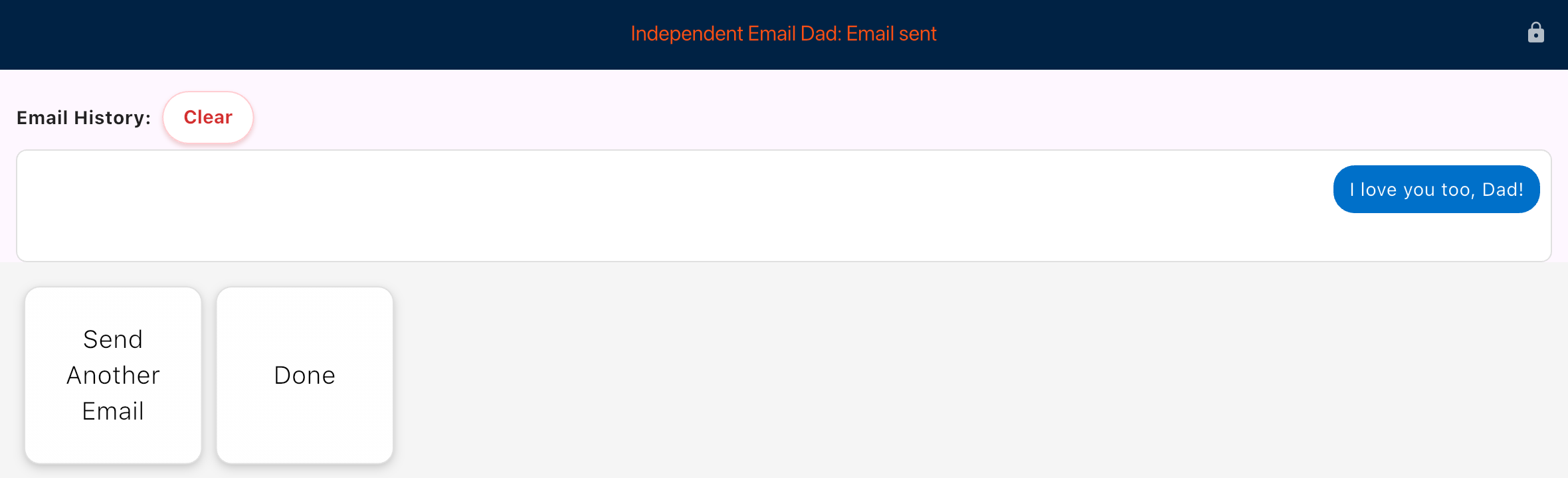
Sent immediately
Bravo University · 209 Email Messages for Scan Interface Users
23
Recap
Email at a glance
Step
Remember
Email account
Gmail or Yahoo, connected in the web app
App Password
Created in Google or Yahoo, pasted into Bravo
Contacts
Family & Friends, with email addresses
Bravo button
Target Page: Email Page
New Topic
User chooses, sends, done: no partner
Reply
Partner says the Wake Word and reads the email
Bravo University · 209 Email Messages for Scan Interface Users
24