
What you will need
Printed parts
- • All five STL files below
- • PLA or PETG, any colour
- • Roughly 30 g of filament in total
Electronics
- • Waveshare RP2040-Zero board
- • 6 × 6 × 5 mm 2-pin momentary tactile button
- • A few cm of thin wire (22–26 AWG)
- • A USB-C cable
Screws
- • 3 self-tapping screws to join the Button Housing to the Base (⌀3.0 mm bores, 7.2 mm deep)
- • Metal screws to suit your switch mount (3 × ⌀3.8 mm mounting holes)
Hole sizes are measured from the models, so you can match screws you already have.
The printed parts
Five parts, printed separately. Dimensions are taken straight from the models.
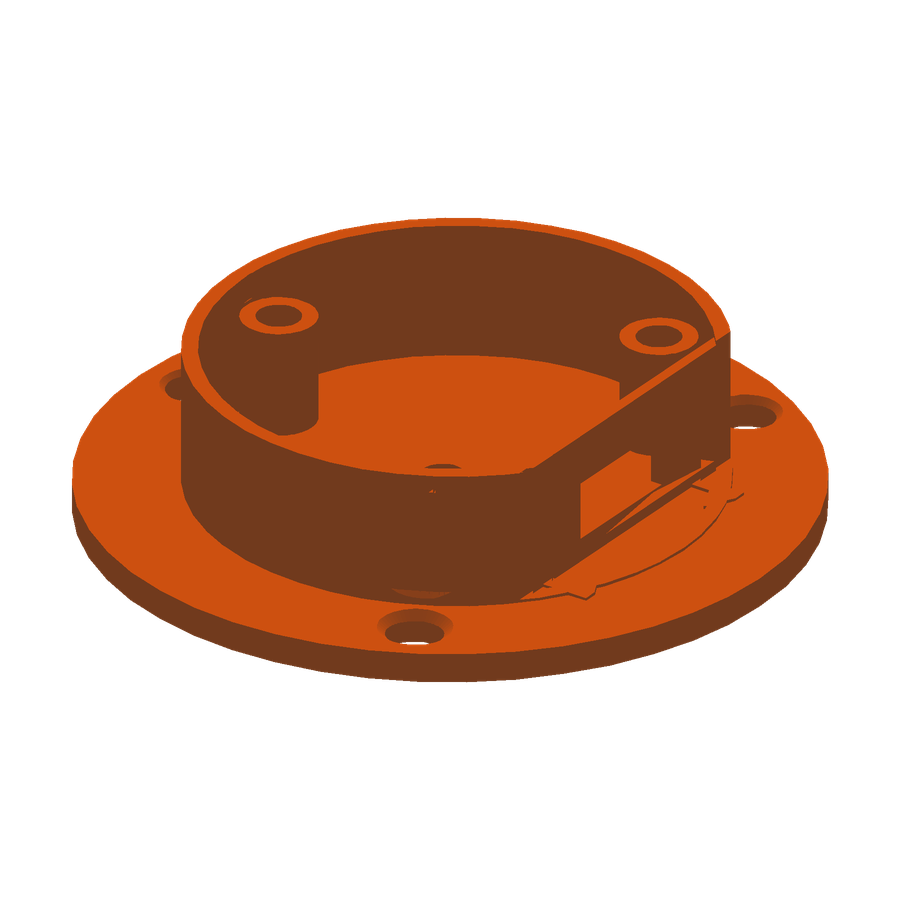
Base
48 × 48 × 11.3 mm
Holds the RP2040-Zero. The flange has three mounting holes so it can be screwed to a standard switch mount, and a cutout in the wall for the USB cable.
base.stl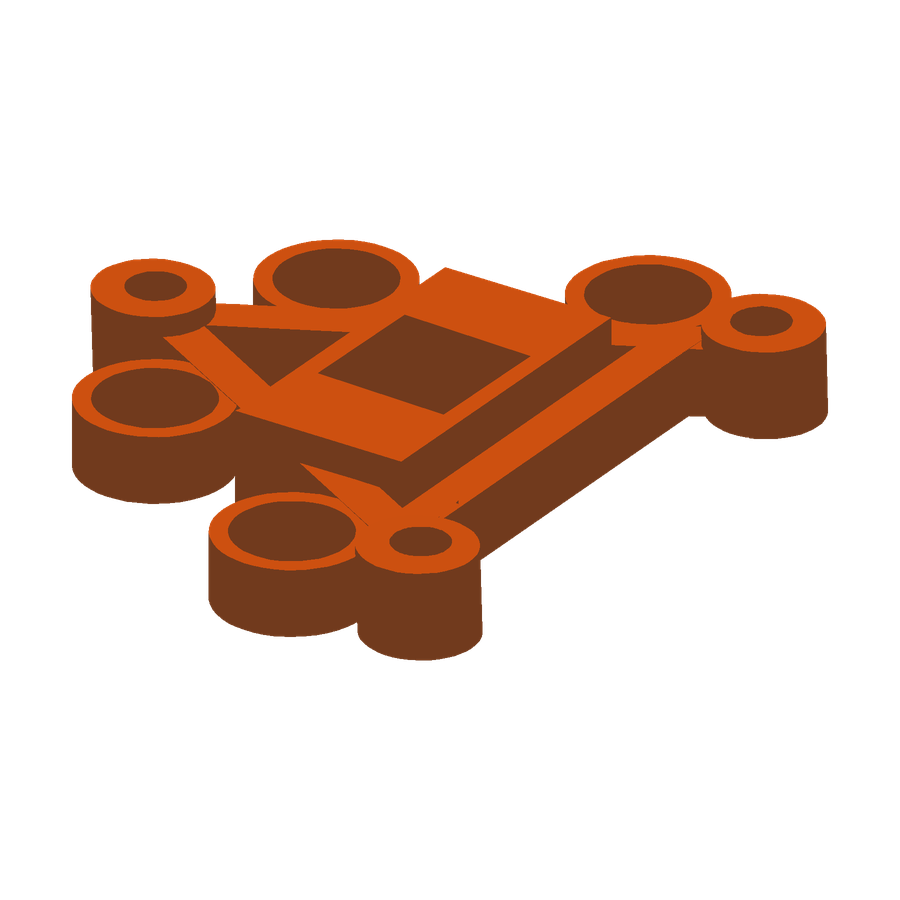
Button Housing
26.6 × 31.1 × 4.4 mm
Holds the tactile button. Screws down onto the three posts in the Base, and the Cap Holder's four stems pass up through it.
button-housing.stl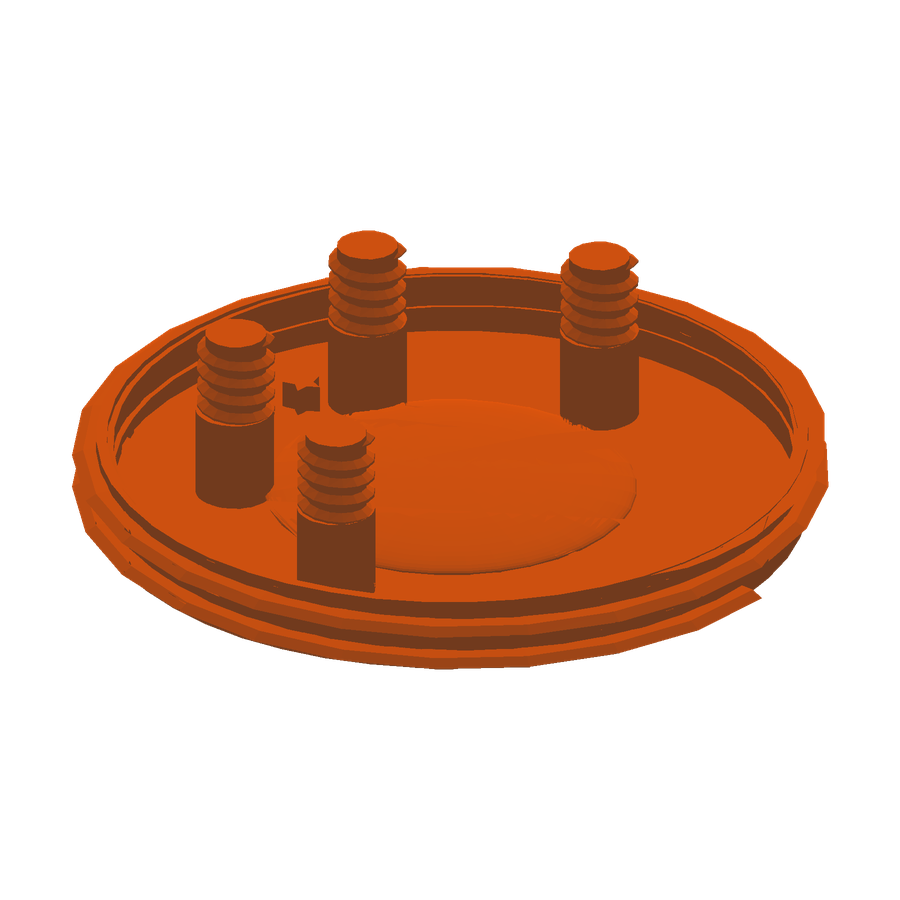
Cap Holder
40.5 × 40.5 × 10.1 mm
Carries the Cap on a threaded boss. Its four stems pass through the Button Housing so the whole top can travel up and down when pressed.
cap-holder.stl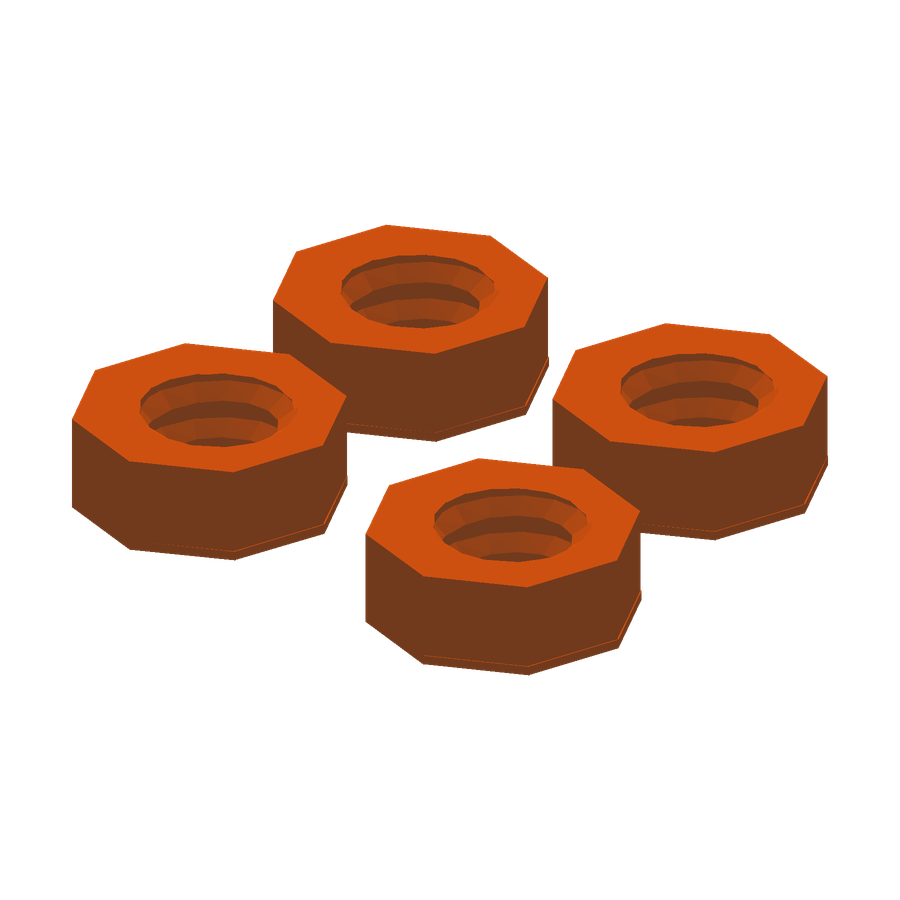
Bolts
16.6 × 15.9 × 2.5 mm
Four of them, printed together. Each screws onto one of the Cap Holder's stems, holding the assembly together while still letting it move.
bolts.stl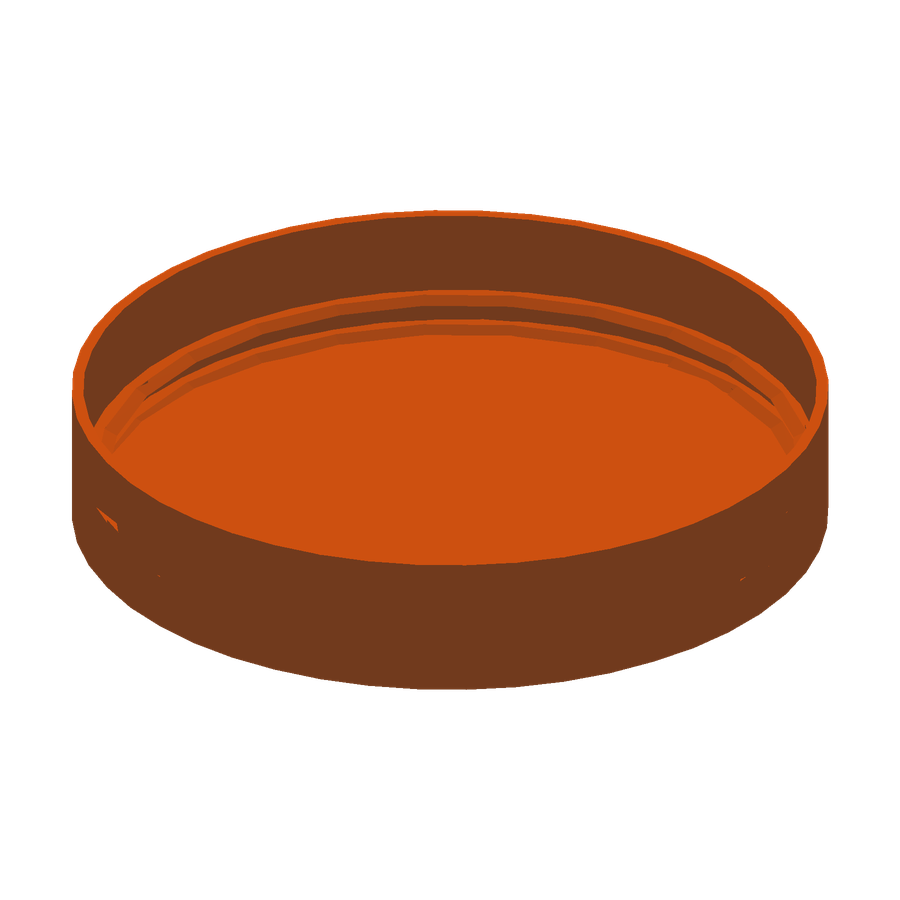
Cap
43 × 43 × 8 mm
The surface the user actually presses. Print this one in their favourite colour, and smooth if your printer can manage it.
cap.stlBuilding it
1. Print the five parts
All five print flat with no supports needed. The Cap and Cap Holder have threads, so print those slowly — a 0.2 mm layer height and a slower outer-wall speed give the cleanest threads. PLA or PETG both work.
2. Solder two wires to the board
Solder a short length of wire from each pole of the tactile switch to the RP2040-Zero: one to GND, one to GP1. It does not matter which pole goes to which — the switch is just closing a circuit.
3. Flash CircuitPython
Hold BOOT on the RP2040-Zero while plugging it in. It appears as a USB drive called RPI-RP2. Copy the CircuitPython .uf2 onto it; the board reboots as a drive called CIRCUITPY.
4. Copy the switch files
Copy boot.py, code.py and the lib folder onto CIRCUITPY. The board restarts and is now a keyboard: pressing the button sends a spacebar.
5. Assemble the housing
Seat the button in the Button Housing and the board in the Base, then screw the Button Housing onto the Base's three posts. Push the Cap Holder's four stems through the Button Housing and screw a printed bolt onto each. Screw the Cap onto the Cap Holder.
Wiring
The tactile button has two poles. Solder one to GND on the RP2040-Zero and the other to GP1.
It does not matter which pole goes to which pad. The firmware holds GP1 high with an internal pull-up and watches for it being pulled down to ground, so the button is only closing a circuit.
The firmware
The board runs CircuitPython. Three things go onto it, all included in the download.
CircuitPython 9.2.8
Flashed once, by copying the .uf2 onto the board while it is in bootloader mode.
waveshare_rp2040_zero 9.2.8.uf2boot.py
Tells the board to present itself as a keyboard only, which is what keeps it compatible with Android.
boot.pycode.py
Watches the button, debounces it, and sends the key press. Runs every time the board powers up.
code.pyThe lib folder in the download holds the Adafruit HID library the code depends on — copy it across too. Newer CircuitPython builds are at circuitpython.org; 9.2.8 is the version this switch was built and tested with.
Sending a different key
The switch sends a spacebar by default. Many scanning interfaces use Tab instead. To change it, open code.py in any text editor and replace the two occurrences of Keycode.SPACE:
keyboard.press(Keycode.SPACE)      ->  keyboard.press(Keycode.TAB)
keyboard.release(Keycode.SPACE)    ->  keyboard.release(Keycode.TAB)
Save the file straight onto the CIRCUITPY drive and the board restarts with the new key. Any other key works the same way — Keycode.ENTER, Keycode.A, and so on.
Licence
These files are released under CC BY-SA 4.0. Print them, change them, sell them if you like — just credit Make the Switch to Bravo and release your changes under the same licence so the next person benefits too.
Before you build
This is a DIY project, not a medical device, and it is offered with no warranty. Soldering is involved, so an adult should do the build. Small printed parts can be a choking hazard before assembly. Check that the finished switch suits the person using it — a therapist or AAC specialist is the right person to ask.
Get the files
One download with all five STL files, the CircuitPython firmware, and the switch code.
Download everything (1 MB)Built something, or improved the design? We would love to hear about it — get in touch.